Joblist
Overview
This section manages the entire workflow of maintenance and repair tasks for vessels, from the initial request and planning to the offer and approval stages.
11.1 Joblist request
This page displays all job requests categorized by their status: Draft, Approved, or Rejected.
11.1.1 Create joblist request draft
to create a joblist request, you must specify the Yacht and the Member making the request.
You should also specify the Facility where the work will be performed and the Reason for the request.
11.1.2 Create/add a job
A joblist consists of multiple "jobs." Each job is a logical unit of work inside a joblist which has a clear scope, and boundary in relation to other jobs. Jobs then can be further articulated in Tasks which is the atomic unit of work that will be assigned to a specific user.
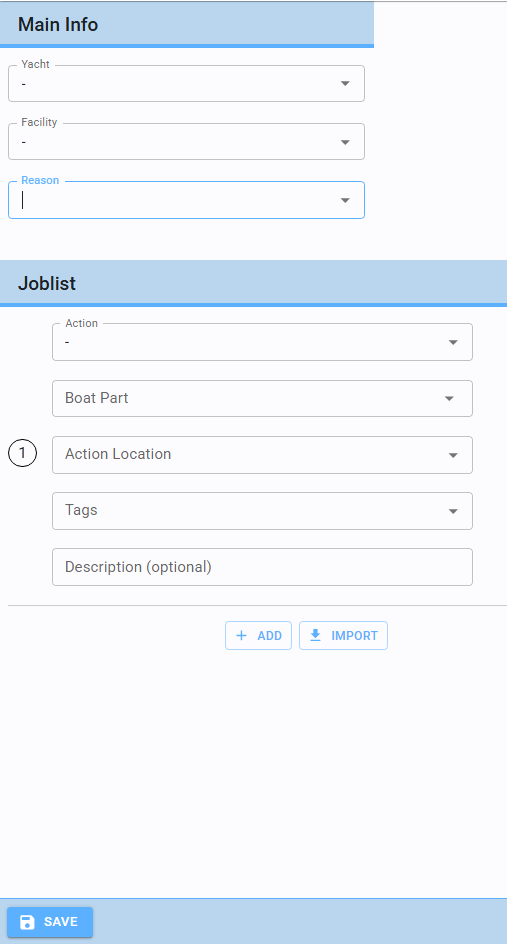
A Job is defined by an Action (see 15.1) and a Boat Part (see 15.2).
These two components are mandatory. Alternatively, a detailed Description must be provided.
Action Location and Tags are elective.
You can add a job by clicking the "Add" button.
HOW TO PLAN JOBS Obviously there can be many strategies on how to break down a complex joblist into smaller jobs, and management topics are outside of the scope of this document, but a good rule of thumb is to answer the following questions:
- Which tools will be needed?
- Which people will be needed?
- Which boat parts are affected?
- How many days will it take?
- Does it make sense to divide a job into 2 separate jobs? The number of jobs and tasks will directly impact the interface and ease of use of the planning tool (See section 12), so it is important to find a balance between granularity or jobs and assignments and manageability of the User Interface
11.1.3 Import from excel
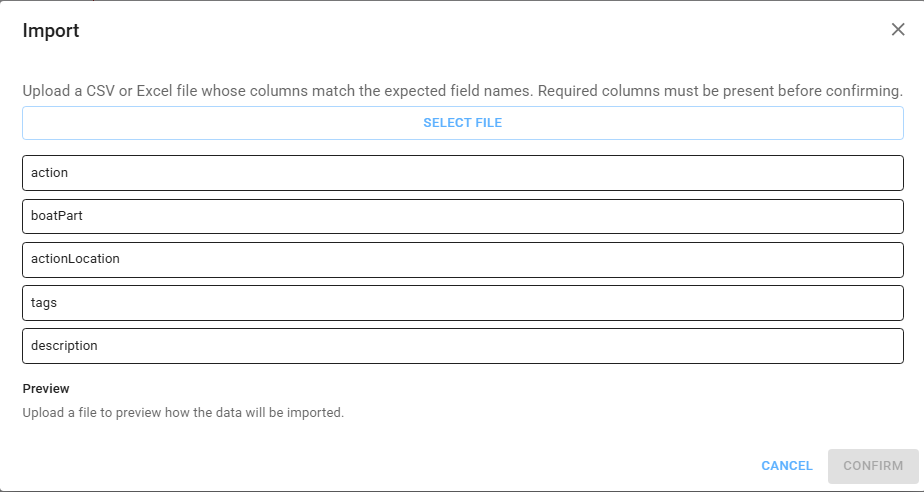
Alternatively, you can import a joblist via CSV or Excel using the "Import" button. A popup will appear where you can upload the file; ensure the file contains the required columns as indicated in the template.

11.1.4 Copy to new request
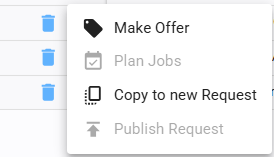
From the Action column in the table, you can click the three vertical dots to copy an existing request
11.1.5 Publish a joblist request
Once the request is finalized, click "Publish Request." Once published, the request can no longer be edited.
11.1.6 Make offer
After a request has been published, the "Make Offer" functionality becomes active (see 11.2.1).
11.2 Joblist offer
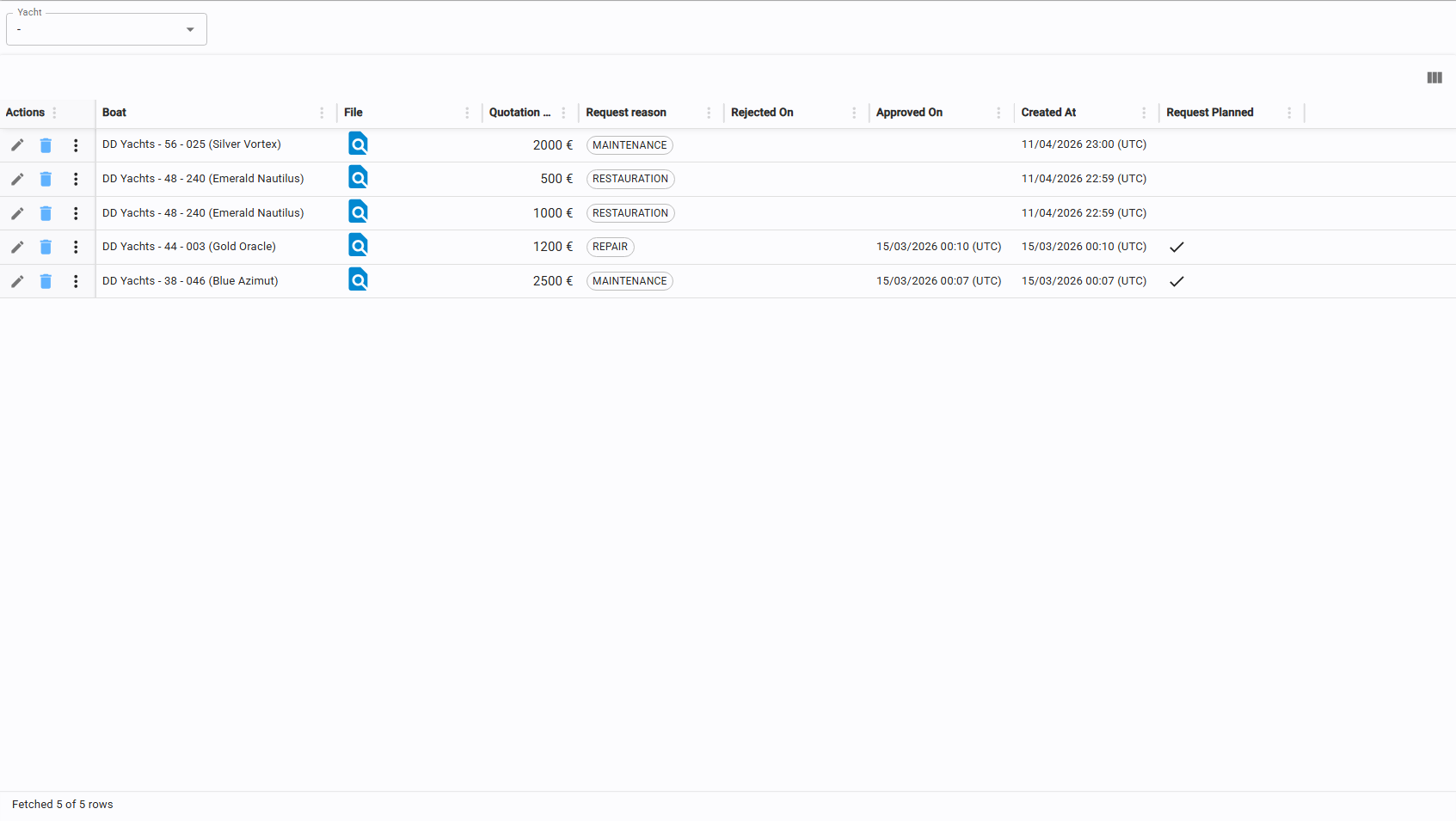
This page is used to manage all service offers and quotations.
11.2.1 Create offer
To create an offer, enter the Quotation amount and attach the relevant file (refer to section 3.6 for upload procedures).
Note: Quotations cannot be modified once saved.
If changes are needed, you must copy the request and create a new offer.
11.2.2 Offer approval/rejection
Once an offer is saved, you can use the three vertical dots in the Action column to either Approve or Reject it.
If Rejected: A new offer can be created (see 11.2.1).
If Approved: You can proceed to Plan Jobs (see 11.2.3).
11.2.3 Plan jobs
Una volta approvata la offer, nella colonna action della tabella, tramite i 3 vertical dots è possibile pan jobs.
Once an offer is approved, select "Plan Jobs" from the Action menu. Moving a joblist to the "Planning" stage allows it to be officially scheduled on the company calendar (see section 12).