Gardiennage
Overview
This section manages Gardiennage services, covering the entire process from the initial client request to offer generation and approval.
The system handles the automatic scheduling of recurring tasks while providing the flexibility to execute them in groups (Events). The key difference between Gardiennage and a standard Joblist is the focus on task frequency and recurrence.
This section also manages the reporting of inspections and checks performed.
13.1 Gardiennage request
This page is used to manage all Gardiennage requests.
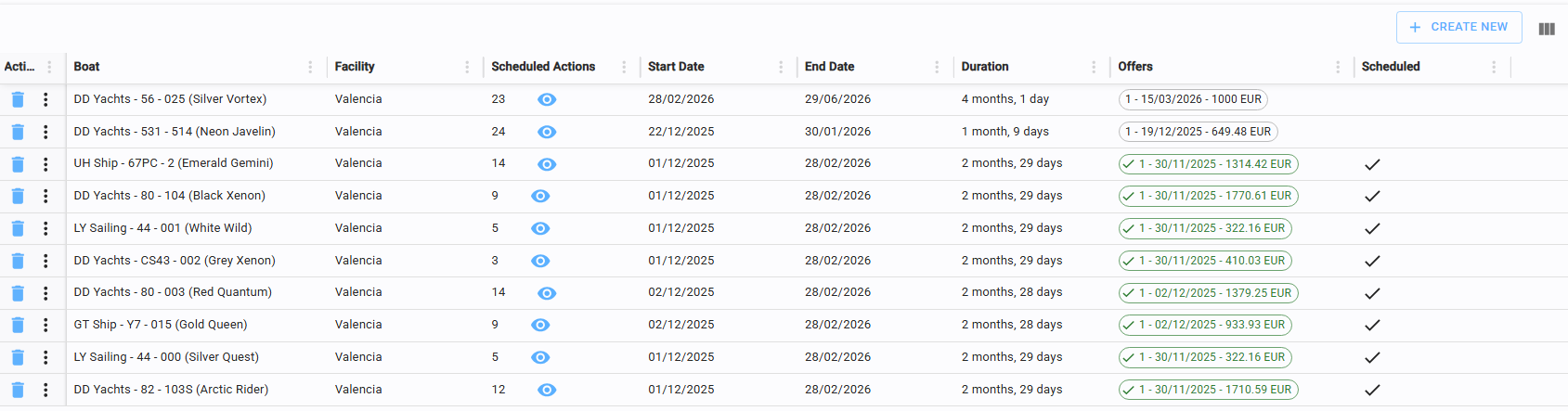
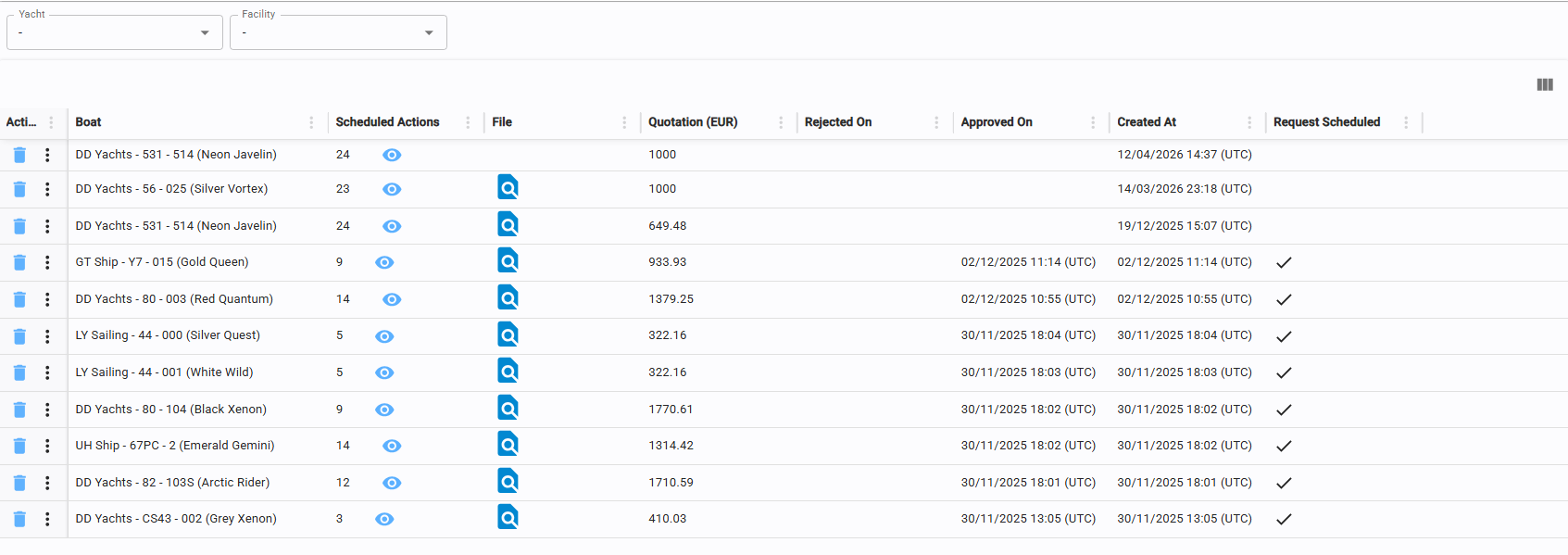
The table displays the yacht, reference period, duration, offer status, and whether the request has been scheduled.
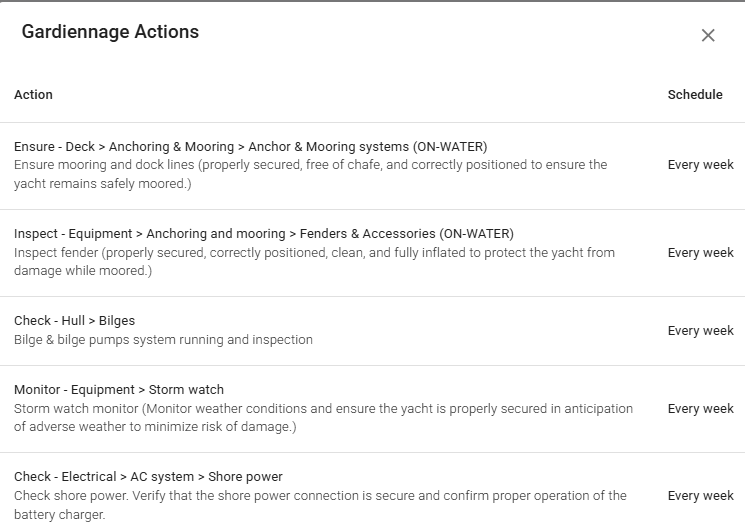
View Requested Tasks: Click the eye icon in the "Scheduled Actions" column to see the full list of requested tasks and their respective frequencies.
From the table, you can delete a request or select "Make Offer" via the three vertical dots. This function redirects you to the Offer Editor and becomes disabled once an offer is created (see 13.2.1).
13.1.1 Create gardiennage request
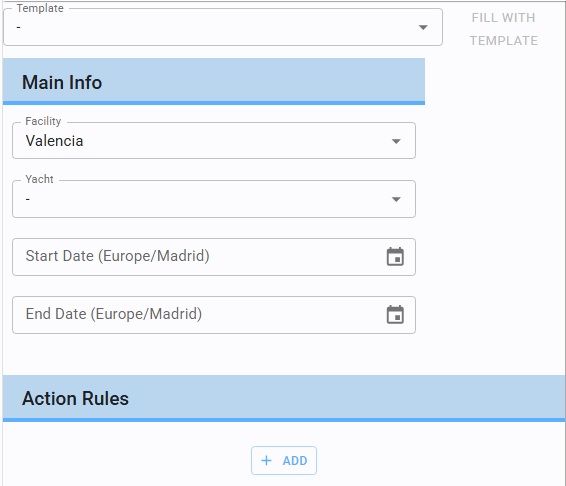
To create a new request, enter the Boat, Facility, Start Date, and End Date.
Next, you must define the specific Actions to be performed along with their Frequencies (see 13.1.2) or use a pre-configured template (see 13.1.3).
13.1.2 Add an action and frequency
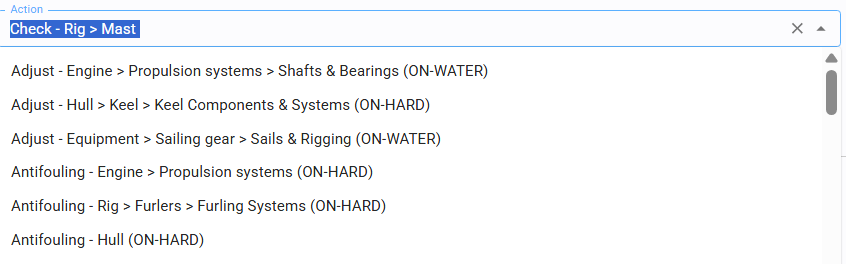
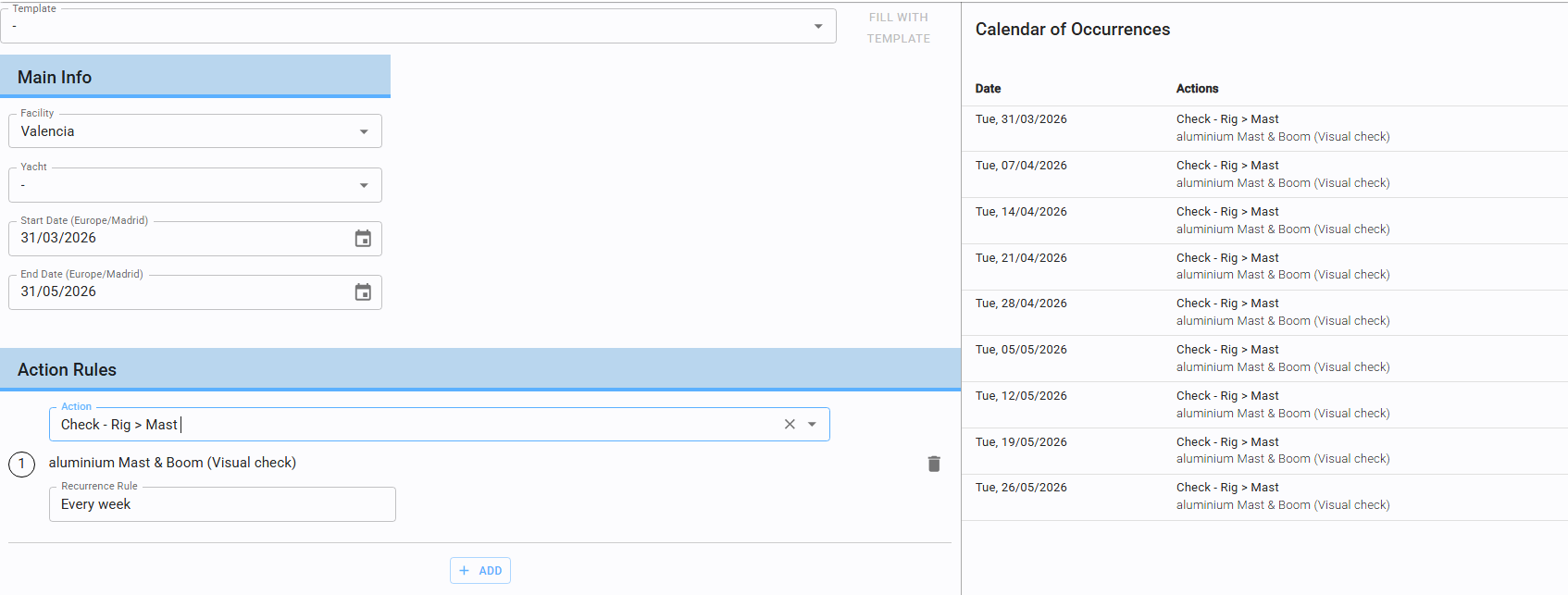
Add actions individually and assign a specific frequency to each.
The Occurrences Calendar on the right side of the screen will update in real-time, showing all future instances of that task. It consists of 2 columns: Date and Action
13.1.3 Create gardiennage request from template
In the Gardiennage section, you can use pre-defined templates during the request creation phase to save time.
13.2 Gardiennage offer
This page manages all Gardiennage service quotes and offers.
13.2.1 Create offer
To create an offer, enter the Quotation amount and attach the relevant file (refer to section 3.6).
Note that the quotation amount cannot be modified once saved.
13.2.2 Offer approval/rejection
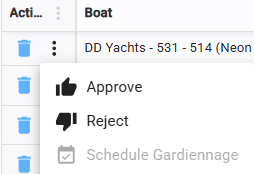
Once the offer is saved, use the three vertical dots in the Action column to Approve or Reject it.
If Rejected: A new offer can be generated (see 13.2.1).
If Approved: You can proceed to Schedule Gardiennage (see 13.2.3).
13.2.3 Schedule gardiennage
Once an offer is approved, select "Schedule Gardiennage" from the Action menu to officially activate the recurring tasks.
13.3 Action rules
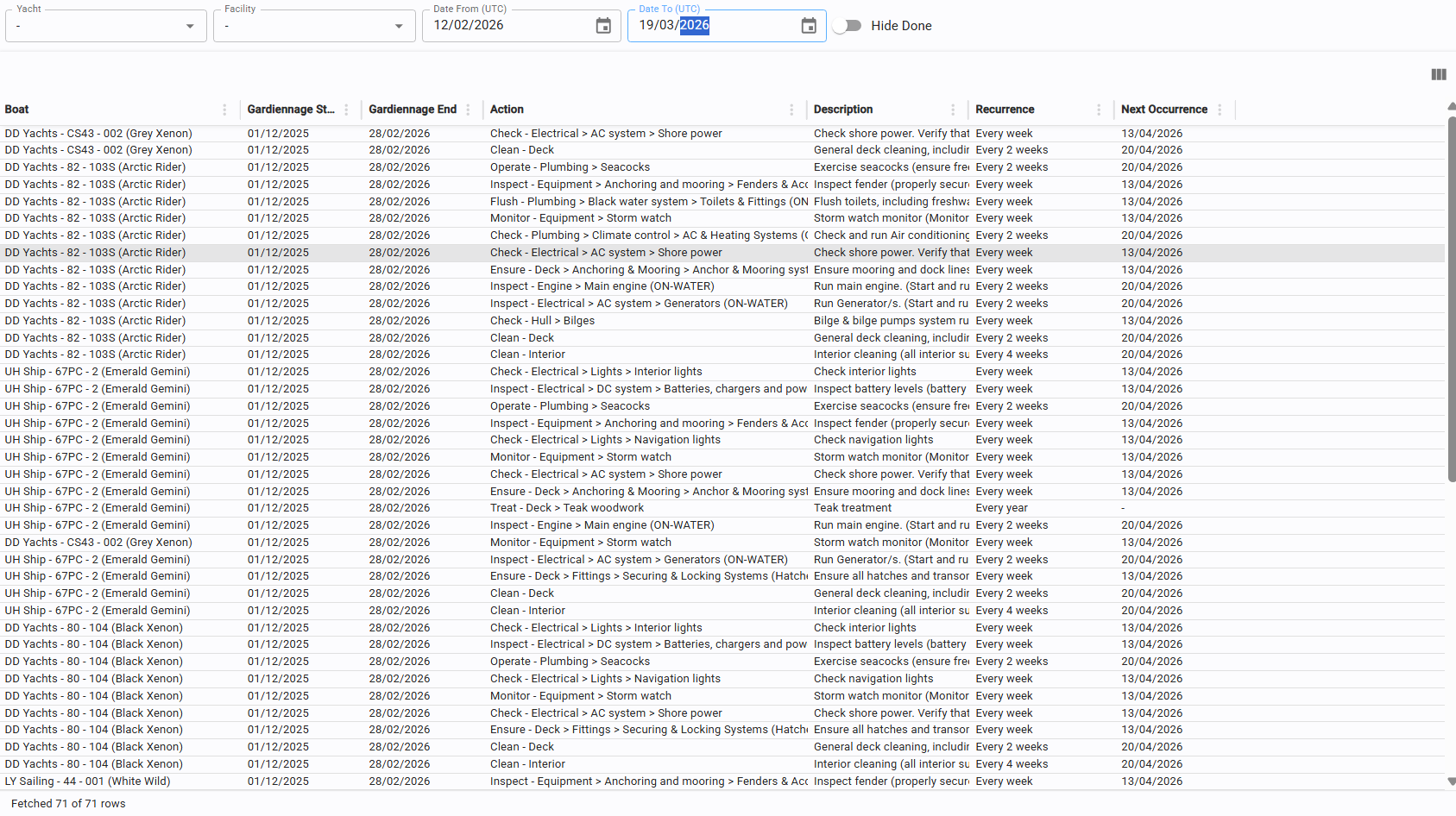
This page displays all active Gardiennage rules.
For each yacht, it shows the requested actions, their frequency, the overall period, and the date of the next scheduled occurrence.
13.4 Occurrences
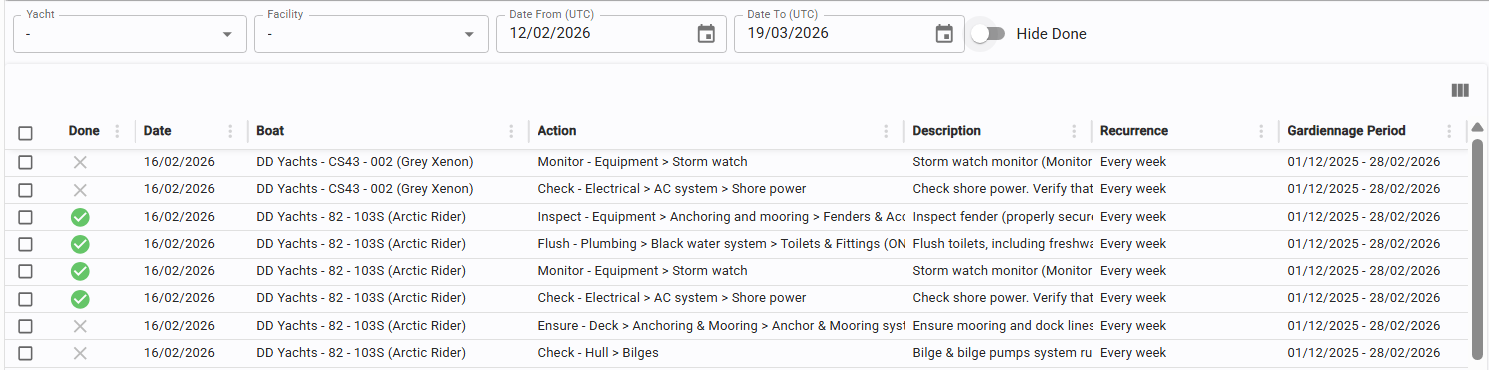
This page shows a flattened filterable list of all individual Gardiennage actions planned within the service period. (For example, if an action is performed monthly for 4 months, it will appear as 4 separate rows).
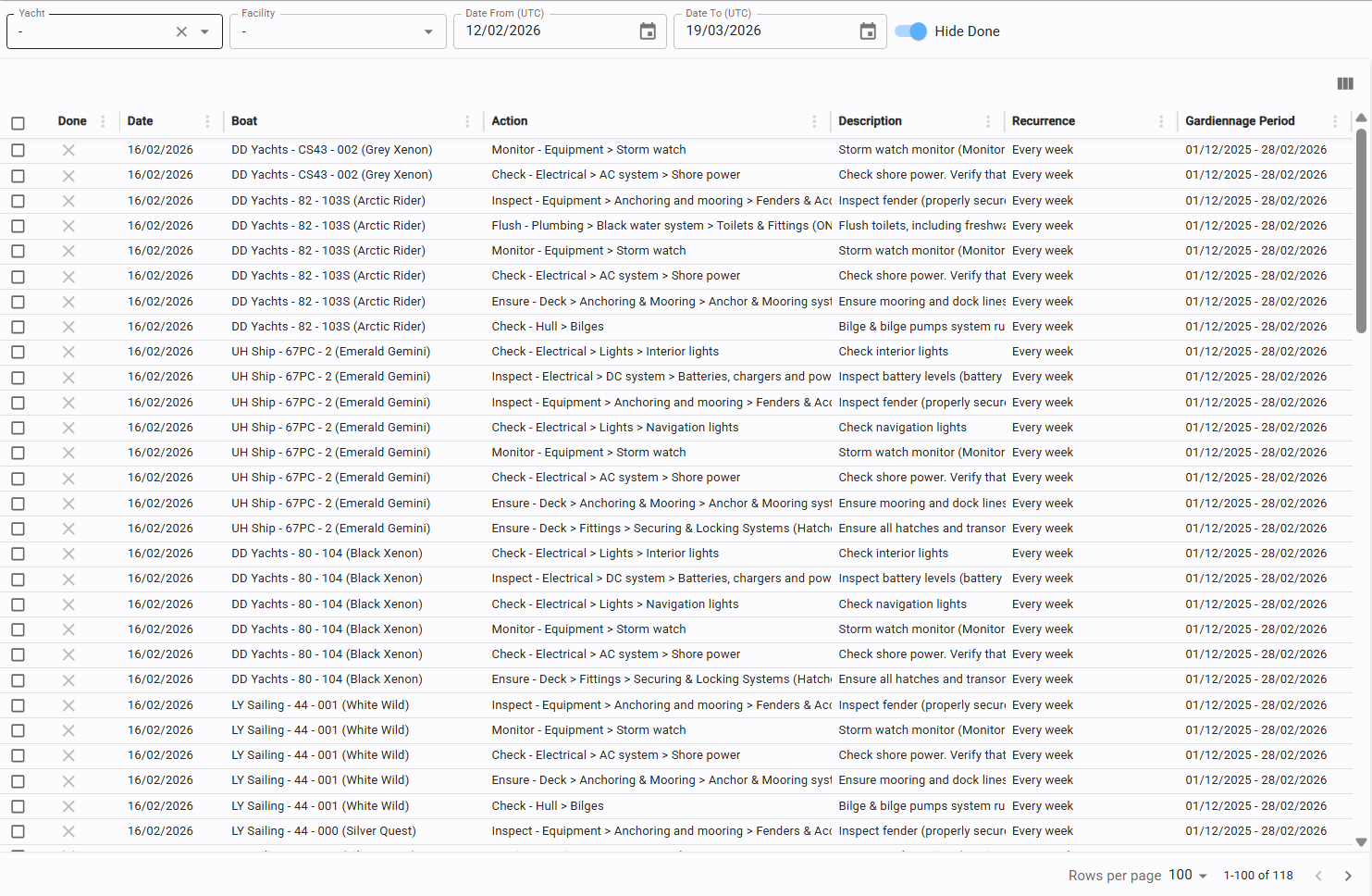
This is the page where actions are marked as completed by creating a Gardiennage Event (see 13.4.1).
Use the "Action Done" switch to filter between pending and completed tasks.

13.4.1 Create new gardiennage event
To execute actions, the user selects one or more items from the Occurrences list using the checkbox in the first column (Note: Select actions for one yacht at a time).
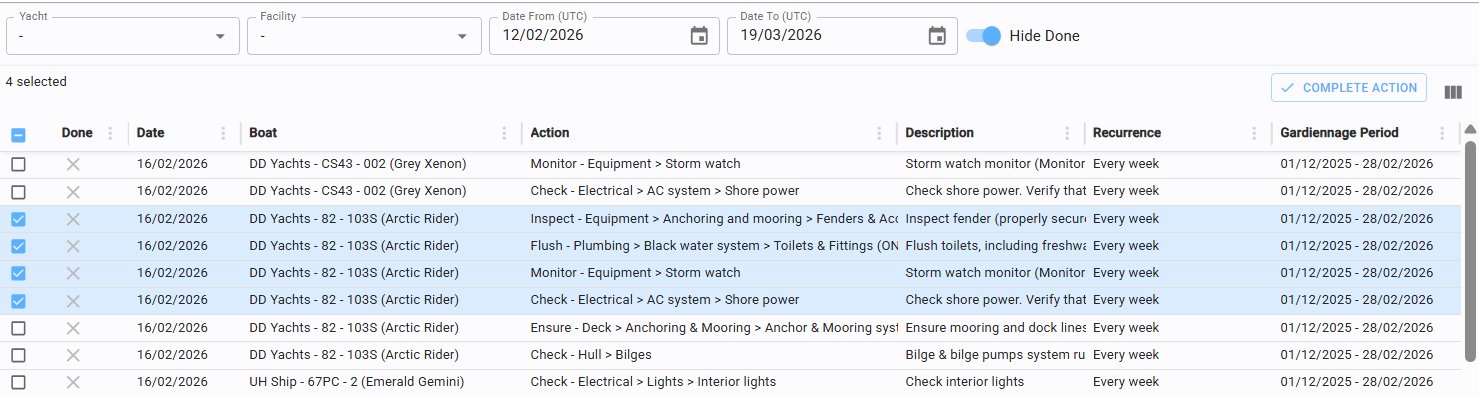
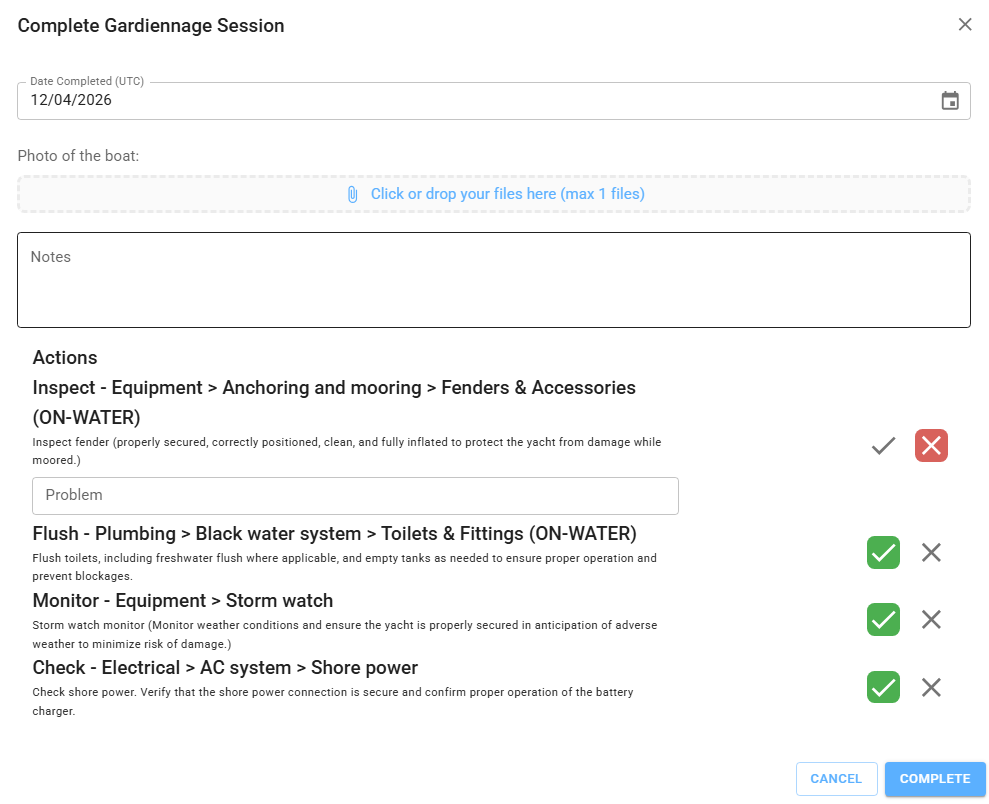
Click "Complete Action" in the top right.
In the Event Editor, the date defaults to the current execution date
Upload a Representative Photo (which serves as the cover image for the event).
Add Notes, update the Status of each action, and provide details in the text field if a problem is reported.
Click "Complete" to finalize.
13.5 Done
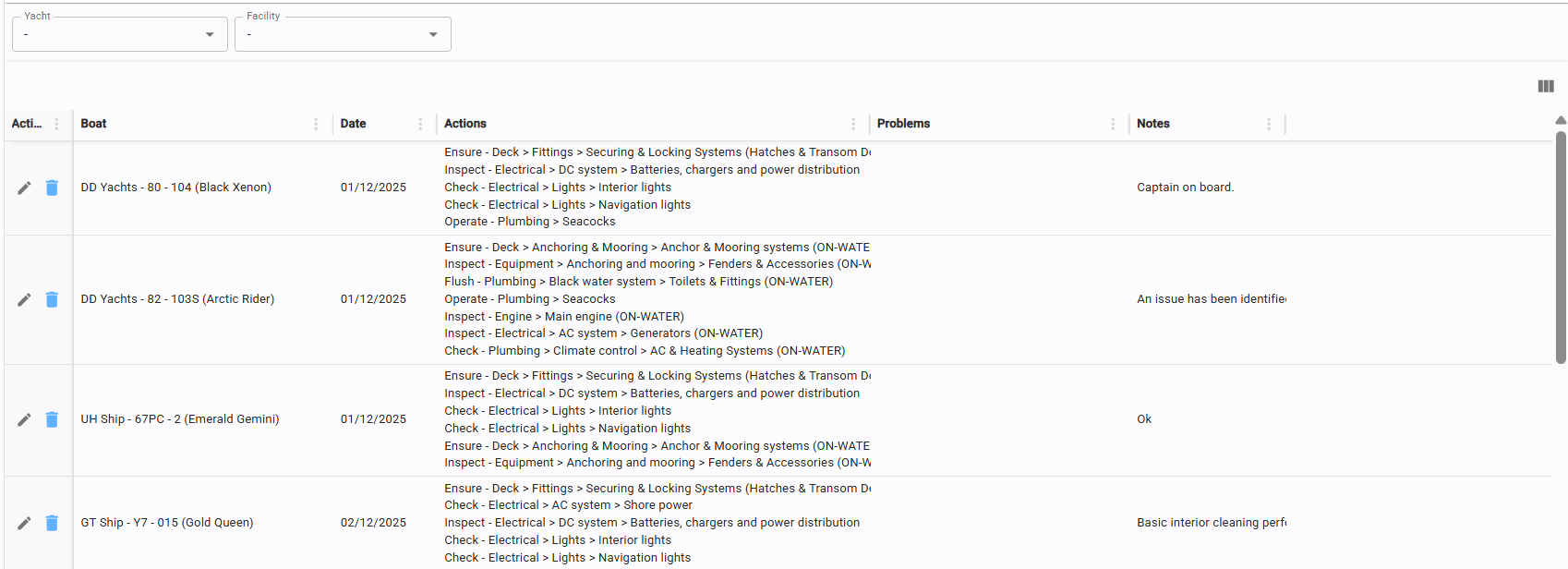
This page is used to view and manage all finalized Gardiennage Events.
13.5.1 Edit gardiennage event
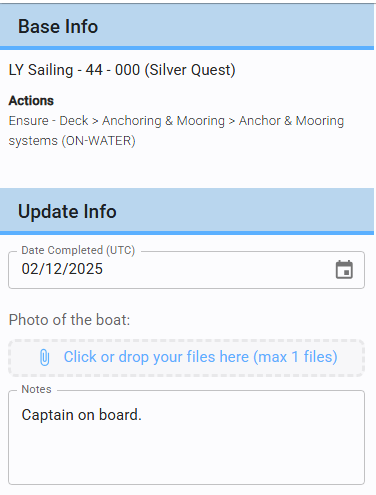
Available actions are limited to Delete and Edit.
Edit: You can only modify the date, photo, and notes.
Actions: The execution status of the actions themselves cannot be changed. If an error was made, you must delete the Event; the underlying actions marked as completed will be deleted too.
13.6 Report
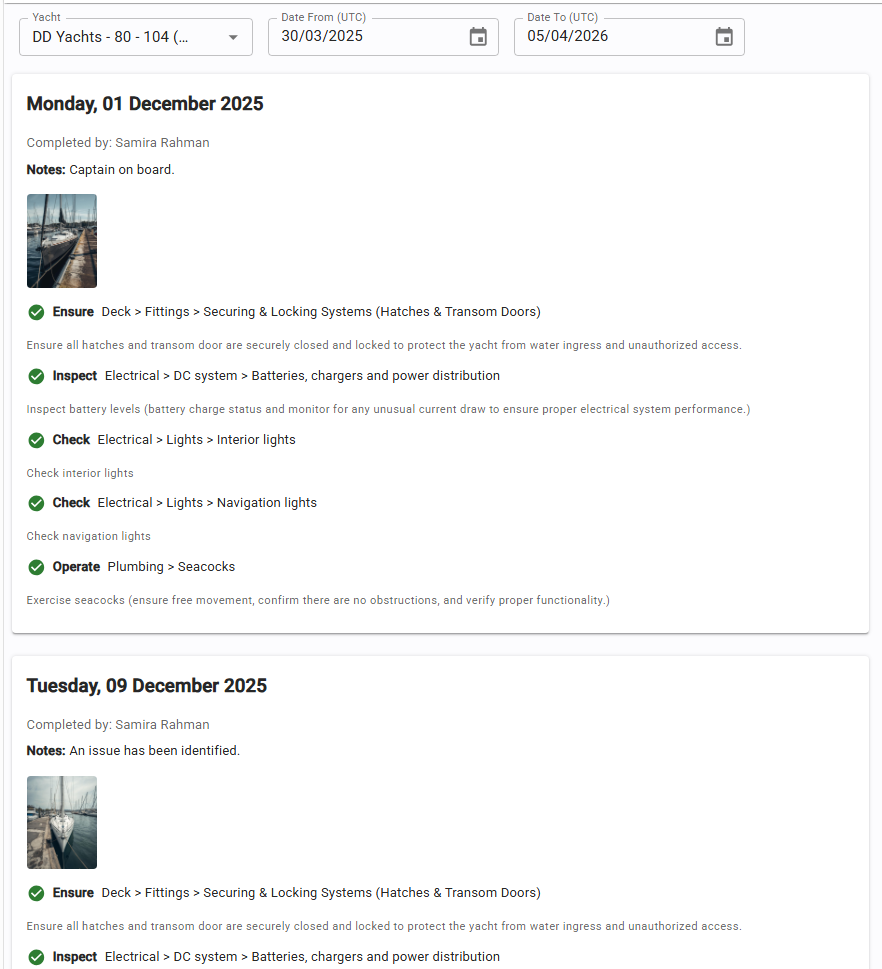
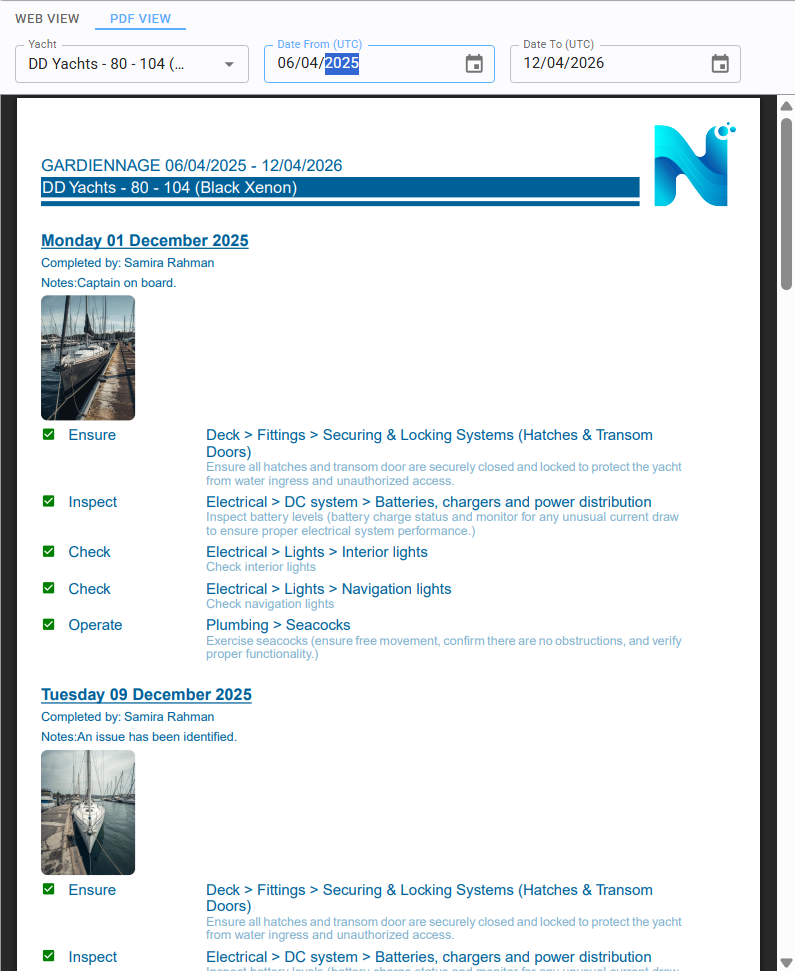
Gardiennage reports can be generated at any time. Select the Yacht and the desired Time Period to compile the data
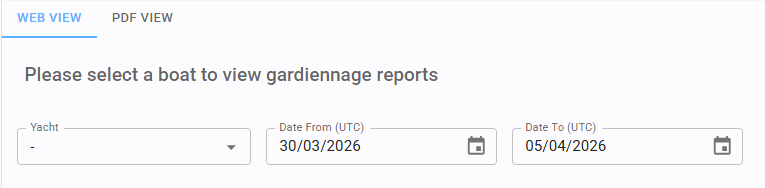
Use the top tabs to toggle between:
WEB VIEW PDF VIEW
(interactive view within the application) (A formatted document ready for download)