Marina
Overview
This section of the application manages all vessel reservations within the facilities, including capacity management and berth assignments, both in-water and in dry storage.
The system allows for the separate management of bookings and mandatory documentation on one side, and vessel positioning and yard movements on the other.
8.1 Port bookings
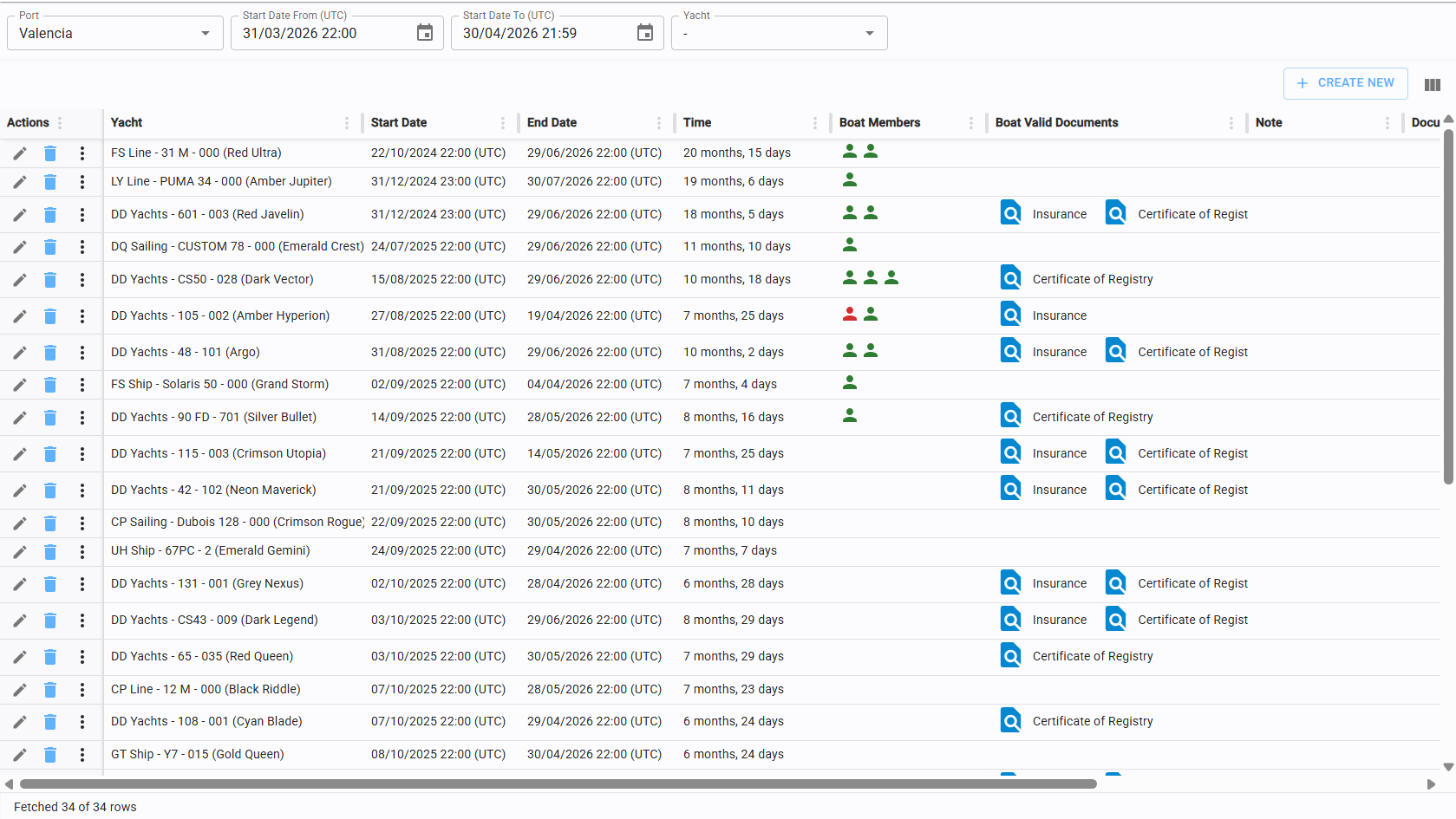
This page is used to manage all vessel reservations within the facility and ensure all necessary documentation for access is provided.
8.1.1 Portbooking actions
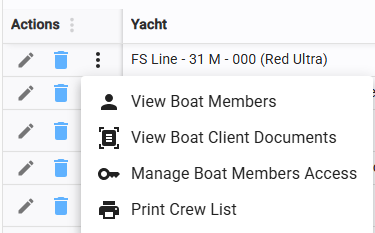
Special actions available directly from the Port Booking table include: - View Boat Members: Inspect the crew associated with the vessel (see 8.1.2).
-
Check Client Documents: Verify mandatory vessel documentation (see 8.1.3).
-
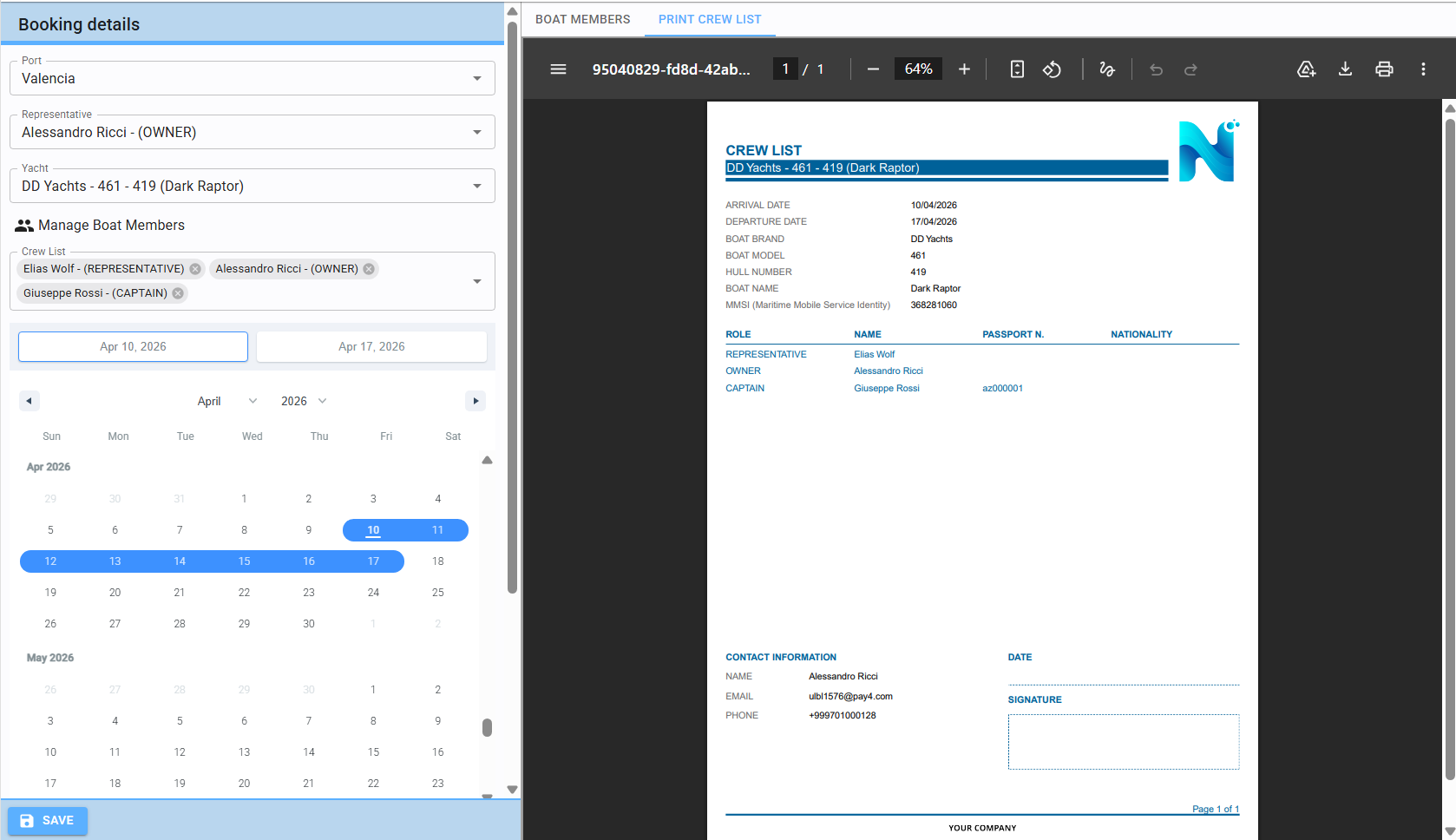
Print Crew List: Generate a crew list document (see preview in 8.1.5).
8.1.2 Check/view boat members
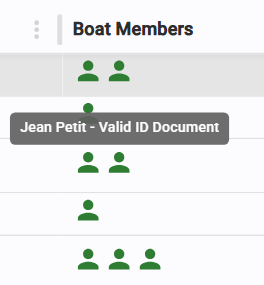
The table provides a visual indicator of whether boat members have valid identification and lists all current crew components.
8.1.3 Check/view boat client documents
The table displays the current validity status of all mandatory vessel documents.
8.1.4 Create/edit of portbooking
Click "Create New" in the top-right corner or the Edit icon in the table to access the booking form.
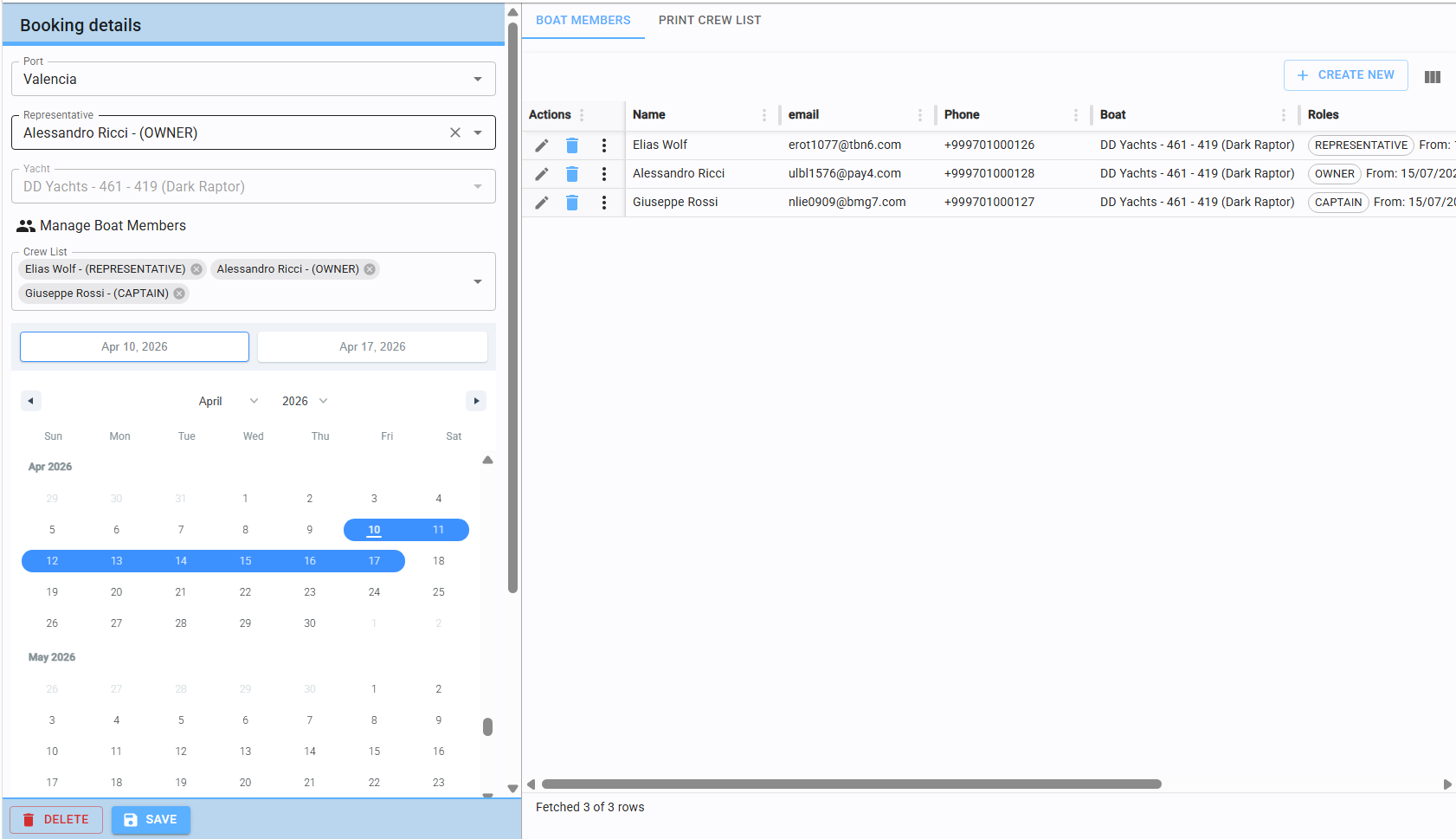
Mandatory Fields: All fields are mandatory except for the Crew List.
Key Requirements: In addition to selecting the Facility (Port) and the Period of Stay via the calendar, you must designate a Representative (the boat member who requested the booking).
Member Management: The right side of the screen is dedicated to managing boat members and mirrors the functionalities of the Members page (refer to section 4.2).
8.1.5 Print crew list
You can print the crew list directly from the Port Booking table action menu (see 8.1.1) without a preview. Alternatively, within the creation/edit page, you can access a PDF preview by toggling the "Print Crew List" tab at the top of the screen before downloading.
8.2 Arrange
This page is used to manage the physical positioning of boats within the port.
Note: To use this section, a preliminary configuration (map construction and slot categorization) is required before operational use and is not covered in this guide. A Map consists of a drawing where some interactive elements are placed. Slots are geometrical elements where the boat can be positioned. The intersection of the boat with the slot will generate an Arrangement.
Operations: Certain actions in this section may trigger the use of specific equipment, such as a Travel Lift.
8.2.1 Overview
The Overview mode provides a comprehensive look at the port's status over a specific time range. It consists of:
DATA RANGE
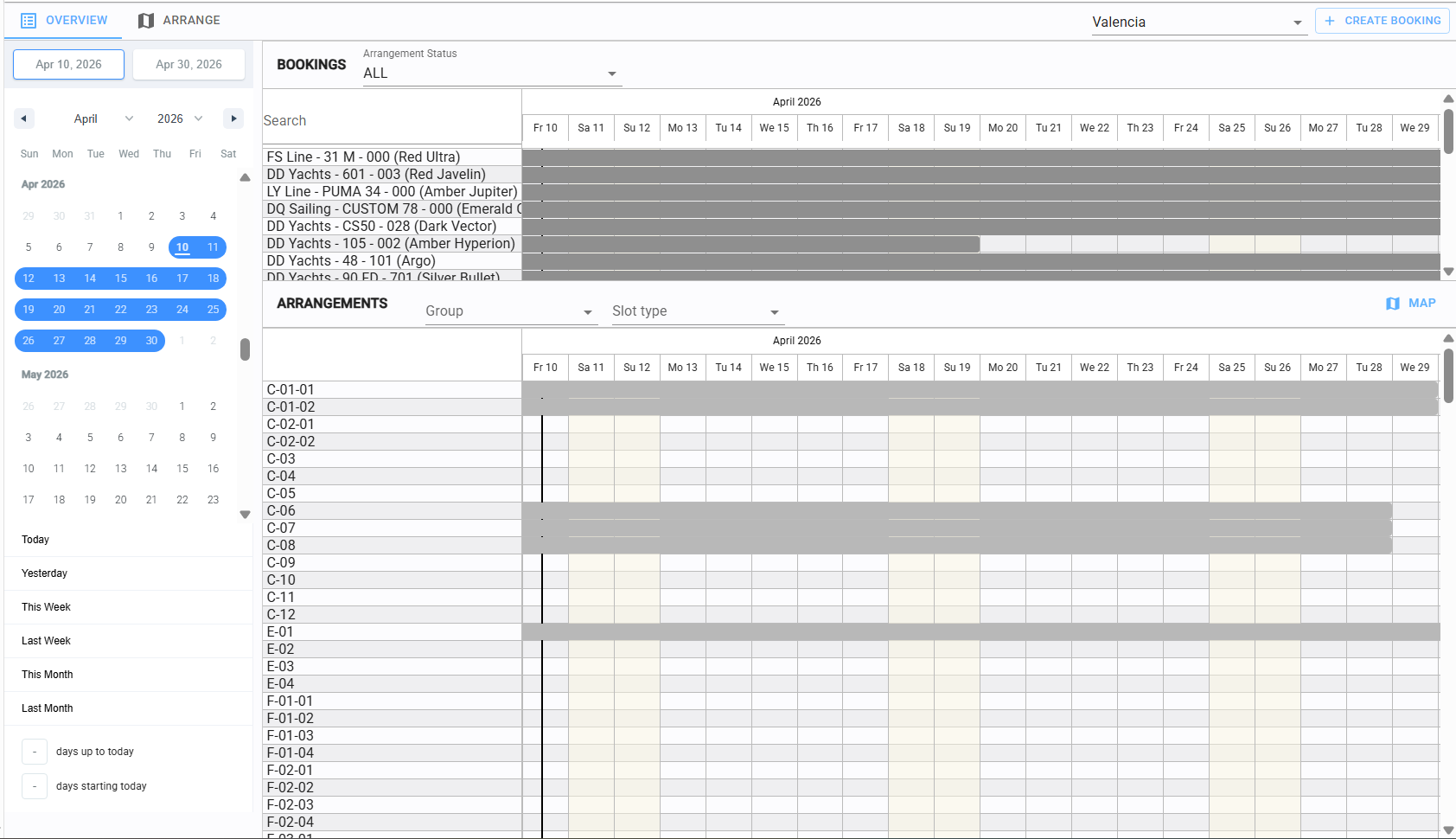
SELECTION PORT BOOKING VISUALIZATION
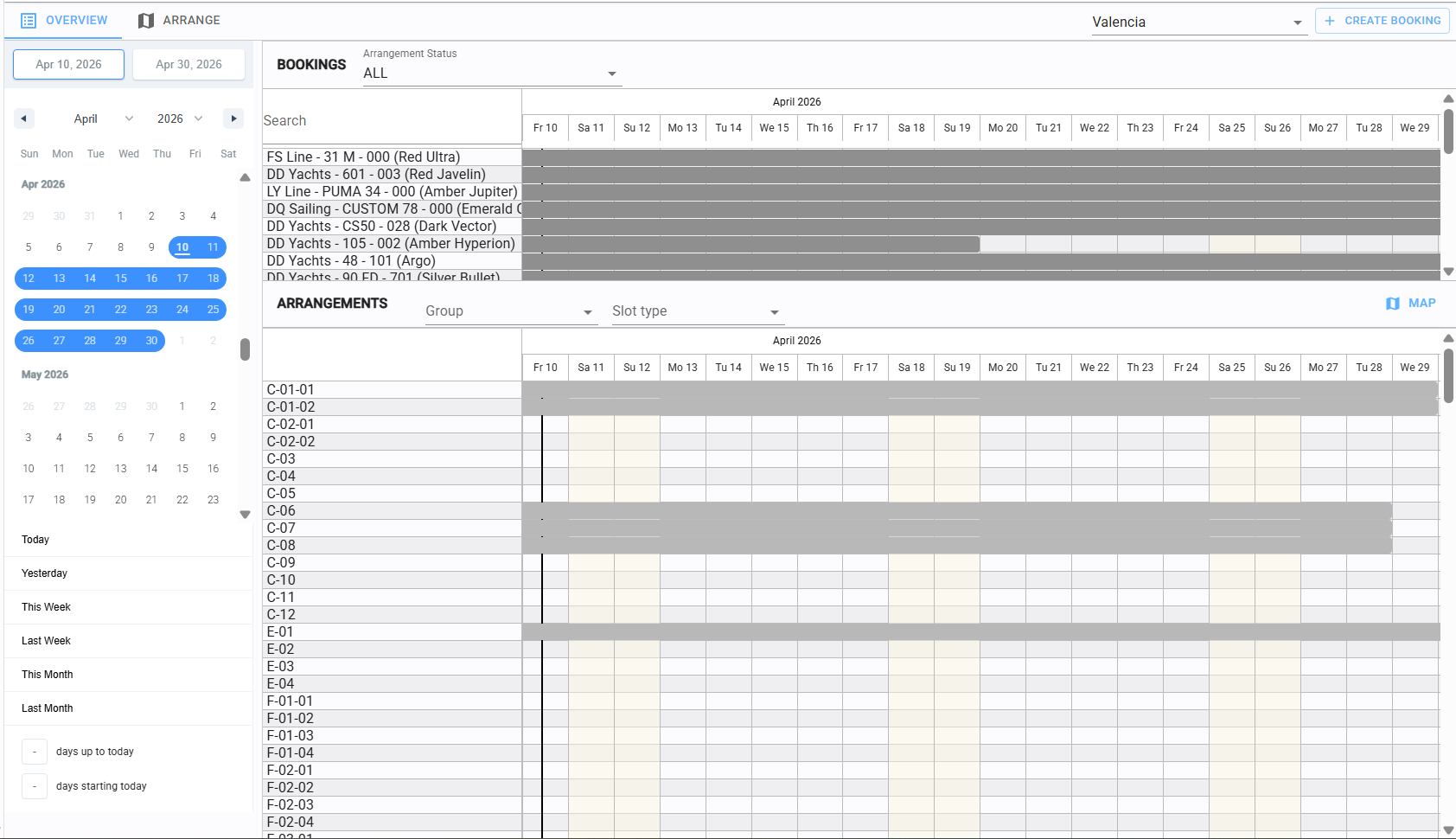
ARRENGEMENTS VISUALIZATION (TIMELINE or MAP)
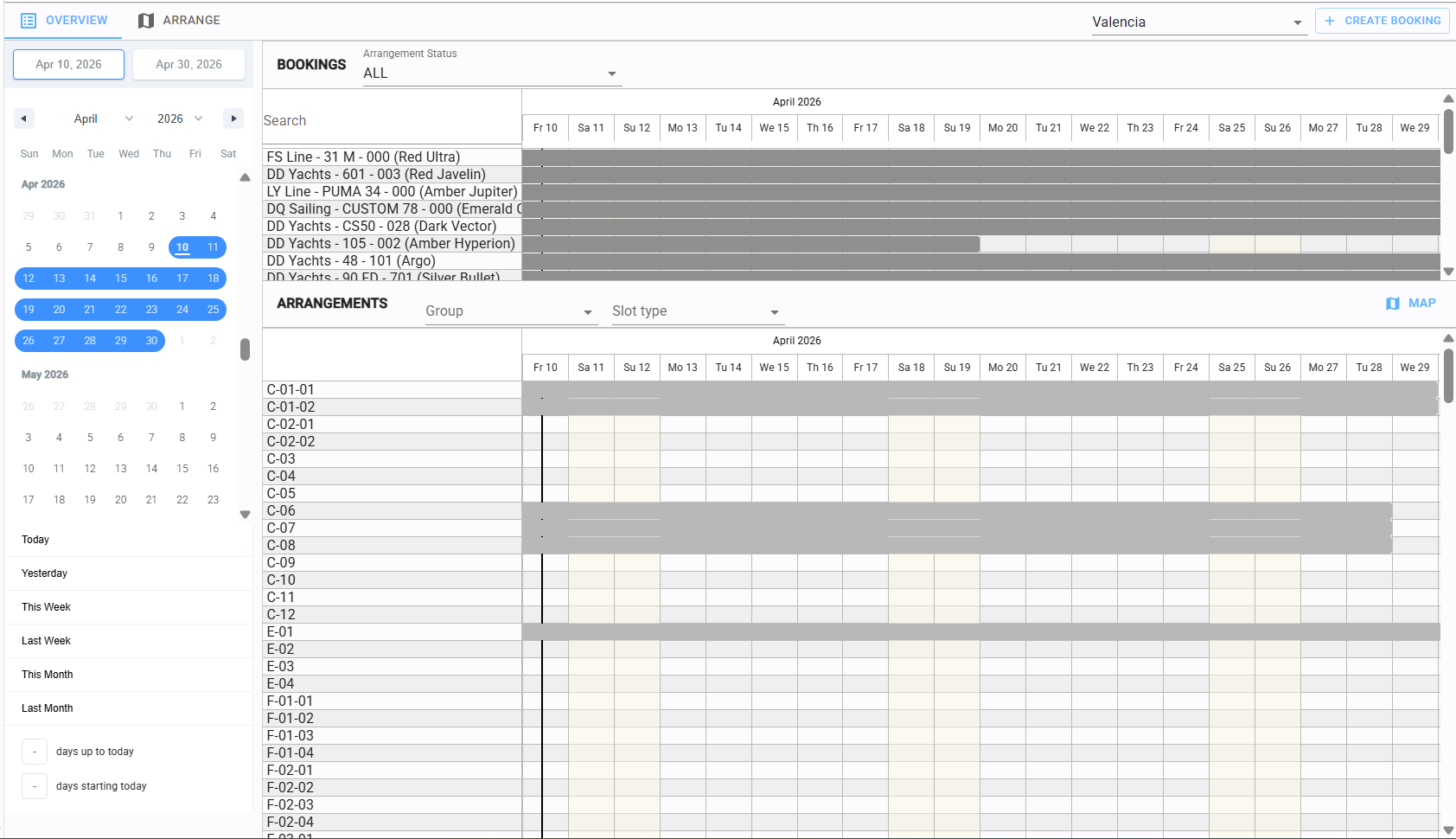
DATE RANGE SELECTION
It is critical to select the correct date range, as the system loads data based on this timeframe.
Any booking that overlaps with the selected range (even for a single day) will be displayed.
Example: If the range is April 10th to April 30th, the system will show vessels arriving before the 10th but departing after it, as well as vessels arriving during the range and departing after the 30th.
PORT BOOKING VISUALIZATION
The Booking section is a timeline view that can be filtered by vessel or arrangement status and
you can zoom in or out with CTRL + Scroll Wheel, pan Left/Right with Click + Drag
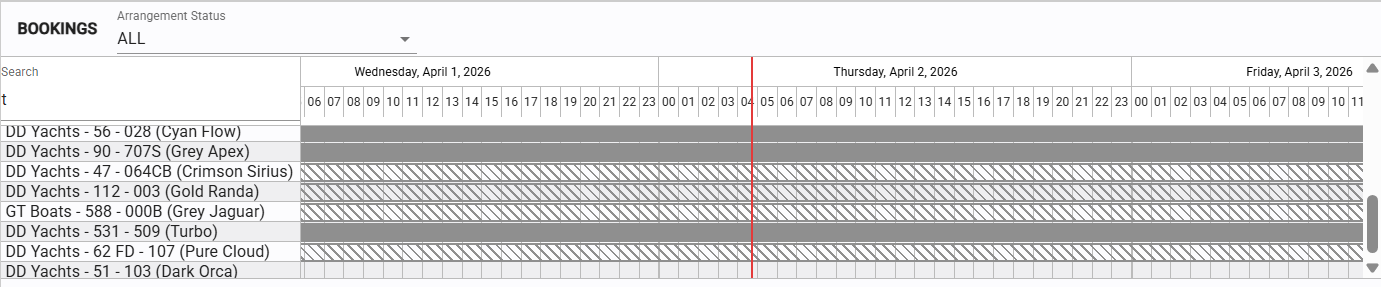
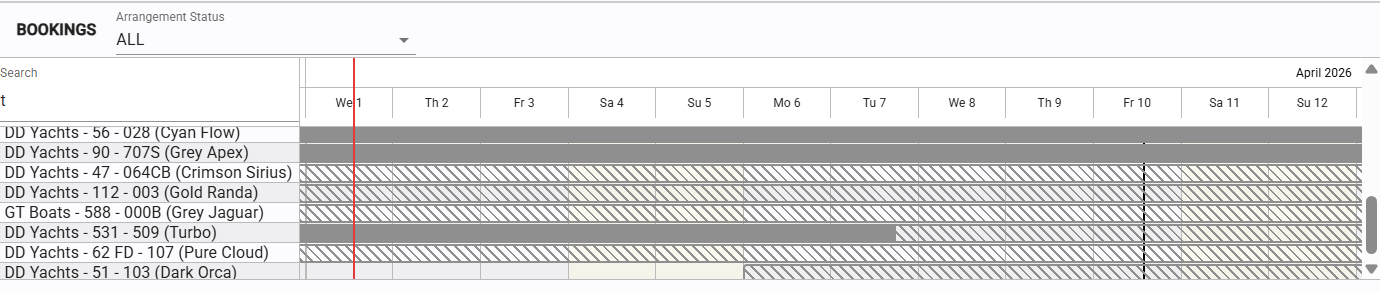
An Arrangement is the physical positioning of a boat over one or more slots in the map of the port.
There are three possible Port Booking statuses in relation to arrangements:
ARRANGED: The boat is assigned to slots for the entire duration of the booking.
ARRANGEMENT MISSING: The boat has no slots assigned for any part of the booking.
ARRANGEMENT INCOMPLETE: The boat is assigned to slots for only a portion of the booking dates.
In the timeline they are represented like this:
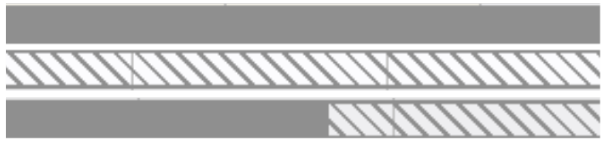
ARRANGED: Full bar with solid color.
ARRANGEMENT MISSING: Bar with diagonal pattern.
ARRANGEMENT INCOMPLETE: Diagonal pattern and solid color, matching the point in time where arrangement starts/end
Right-Click Actions on Bookings:
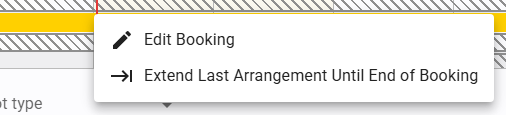
Edit Booking
It opens the booking editor.
(refer to section 8.1.4).
Extend Last Arrangement Until End of Booking
Extends a partial assignment to cover the remaining duration of the booking.
In the top-right corner of the table, the "Create New" button allows you to generate a new port booking directly from this view (see section 8.1.4 for functional details).
A specific action appears only when one or more port bookings are selected:
Arrange on map
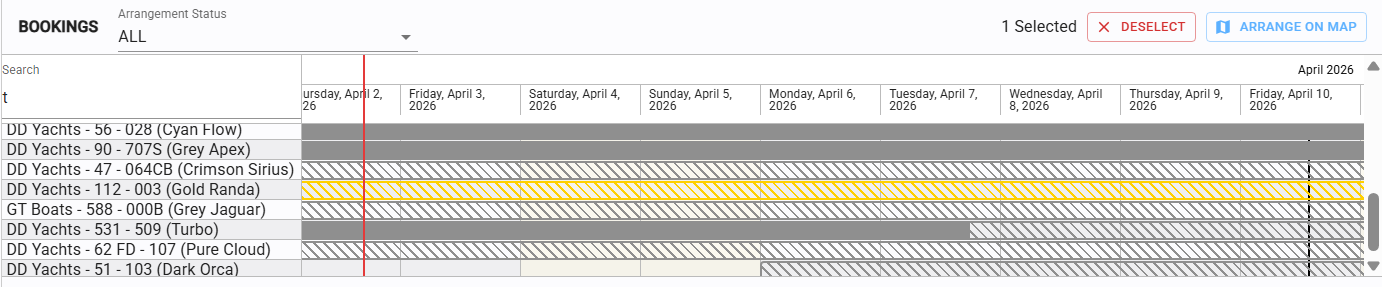
Triggers the visual slot assignment interface. Refer to section 8.2.2 for the detailed workflow.

ARRANGEMENTS VISUALIZATION

The system offers a dual visualization for arrangements: Timeline or Map. You
can toggle between these views by clicking the corresponding button.
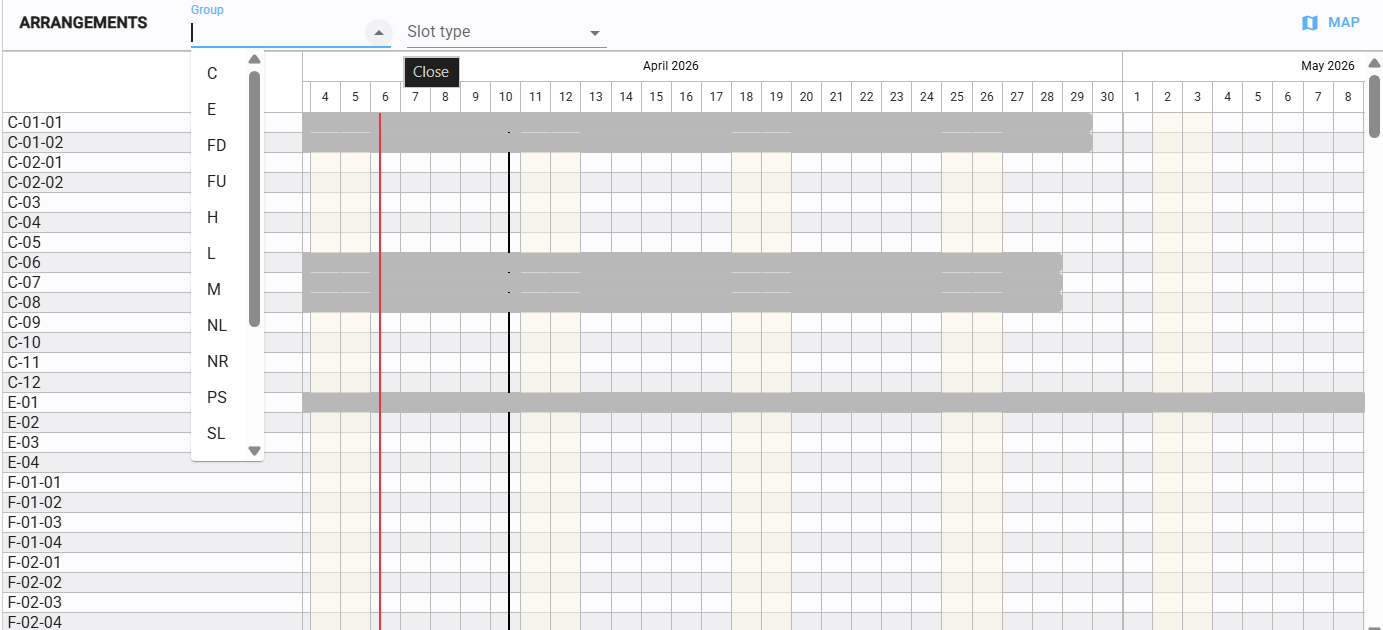
TIMELINE
Provides a chronological view of slot occupancy. You can filter the results by slot type or groups.
MAP
Provides a spatial view of where vessels are positioned at a precise moment in time.
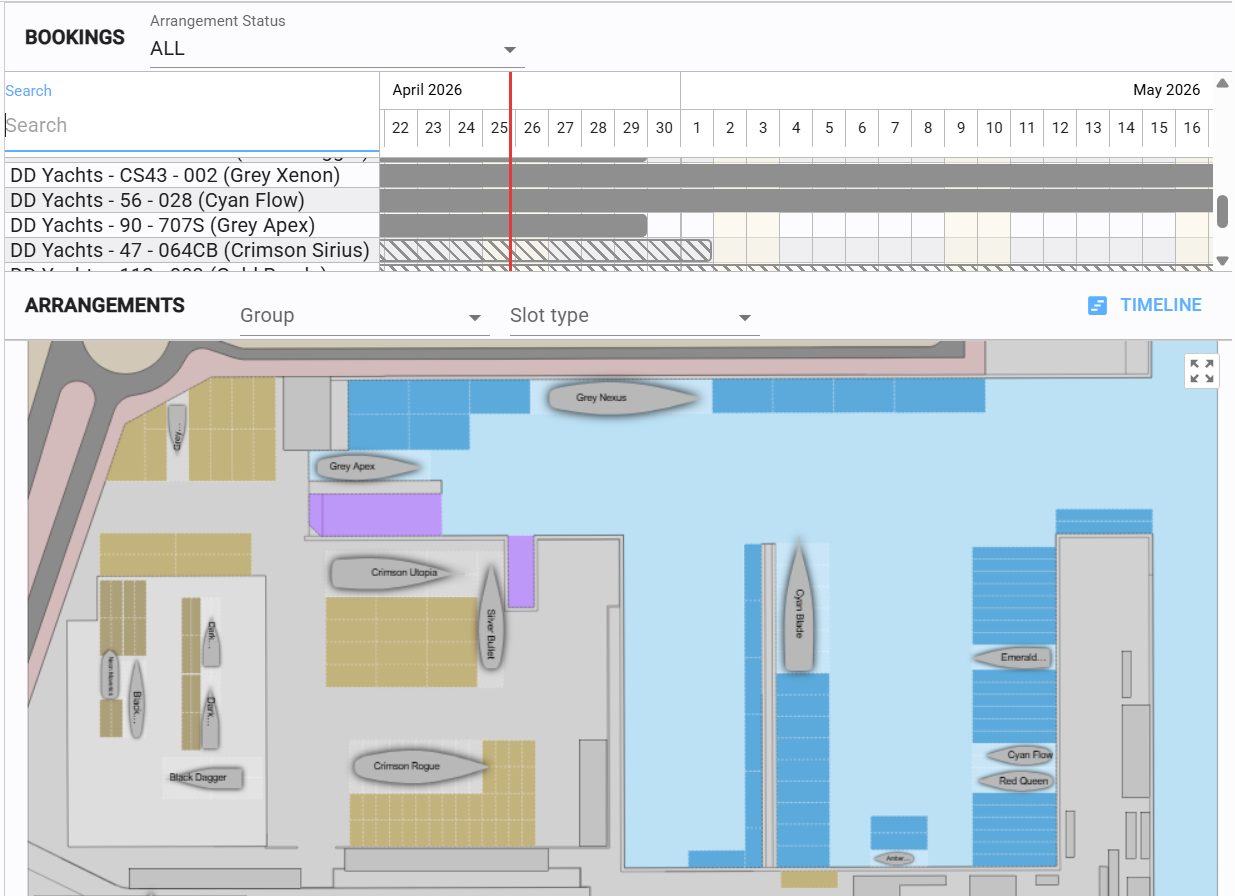
Every interaction with the Map view is time-dependent. The visualization reflects the state of the facility at the exact moment indicated by the red vertical line in the bookings timeline.
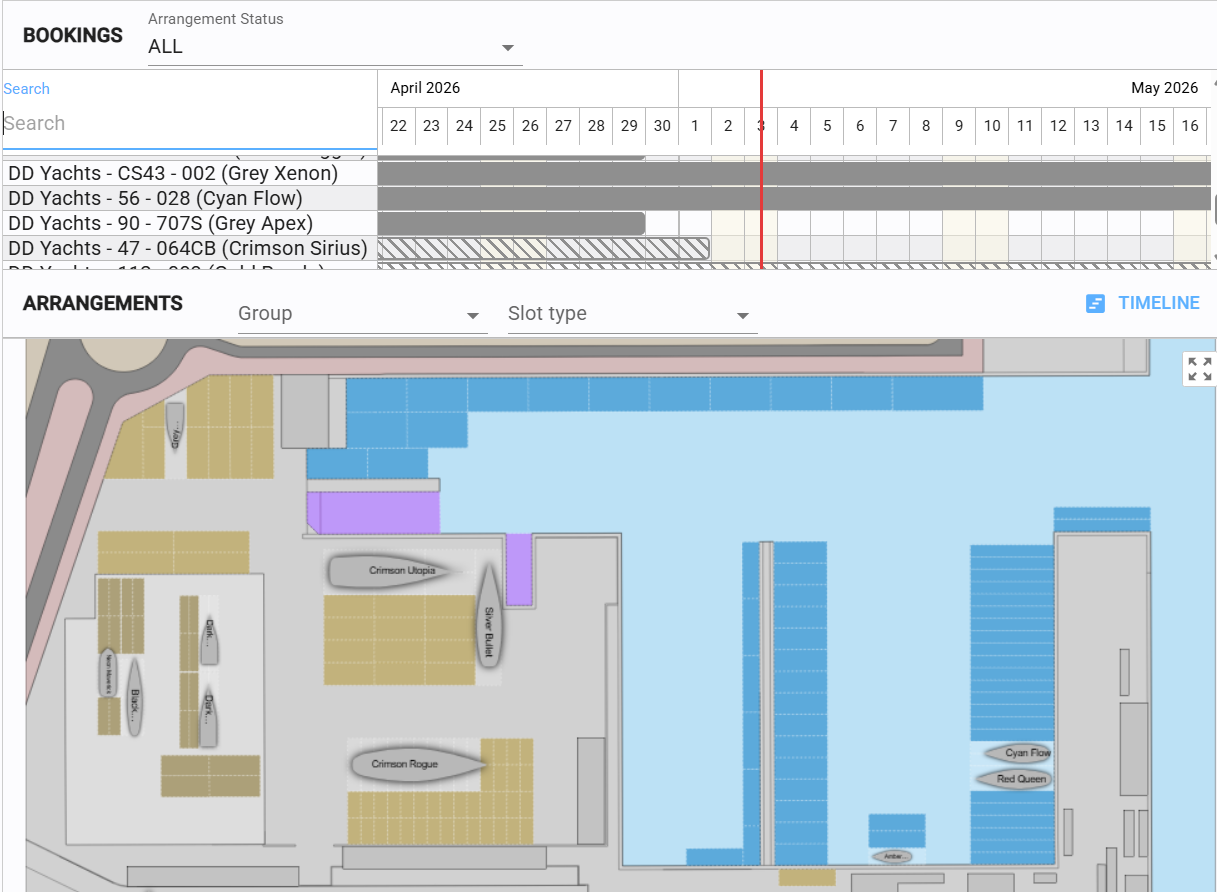
By moving your mouse over the timeline, you adjust the reference timestamp, and the Map visualization updates automatically to show the vessel positions for that specific instant.
8.2.2 Arrange
Access this mode via the Arrange tab. You can interact with vessels present at the specific moment selected.
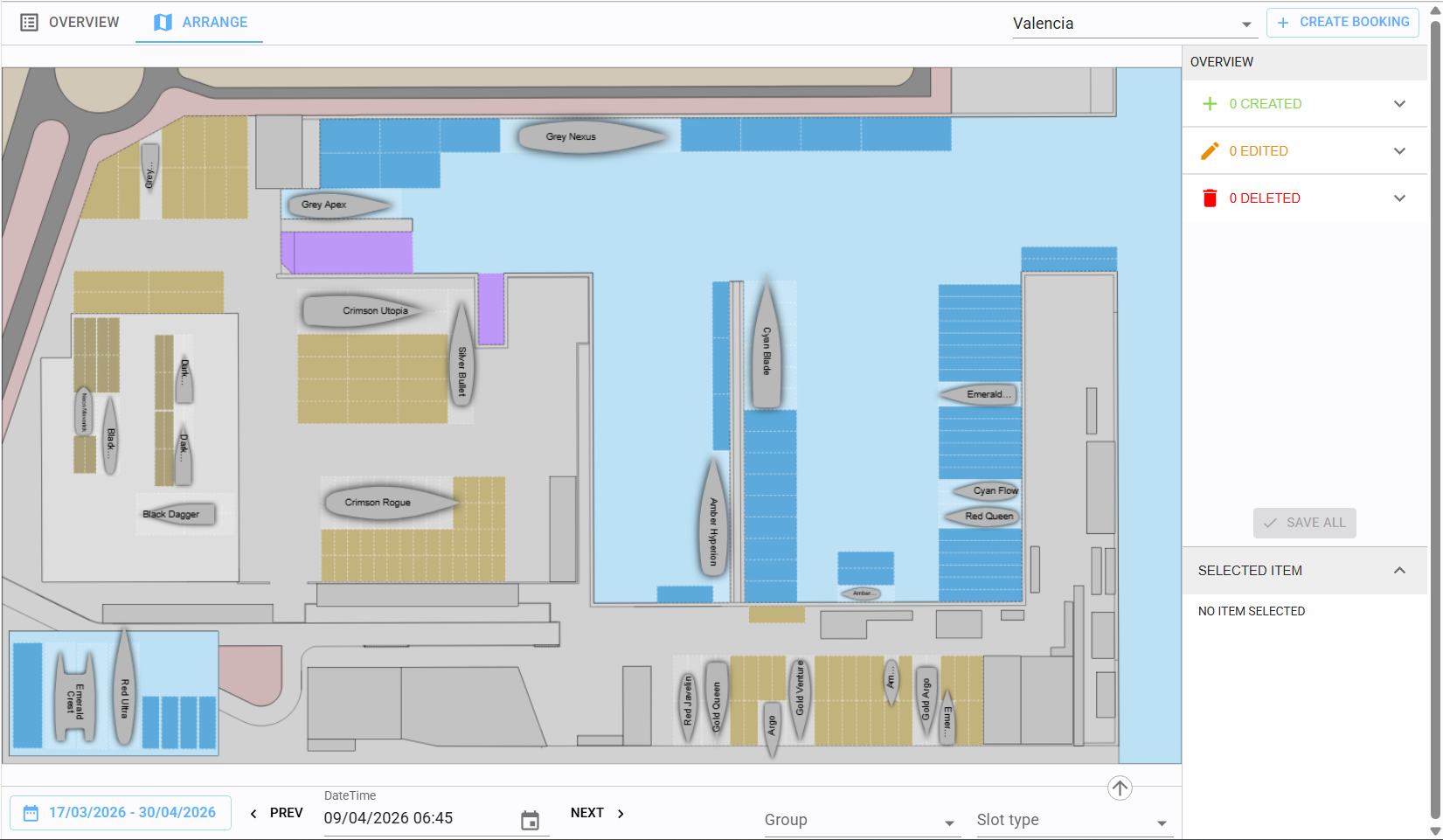
Click on a boat to select it. Upon selection, the system will display the associated Arrangement and Port Booking data.
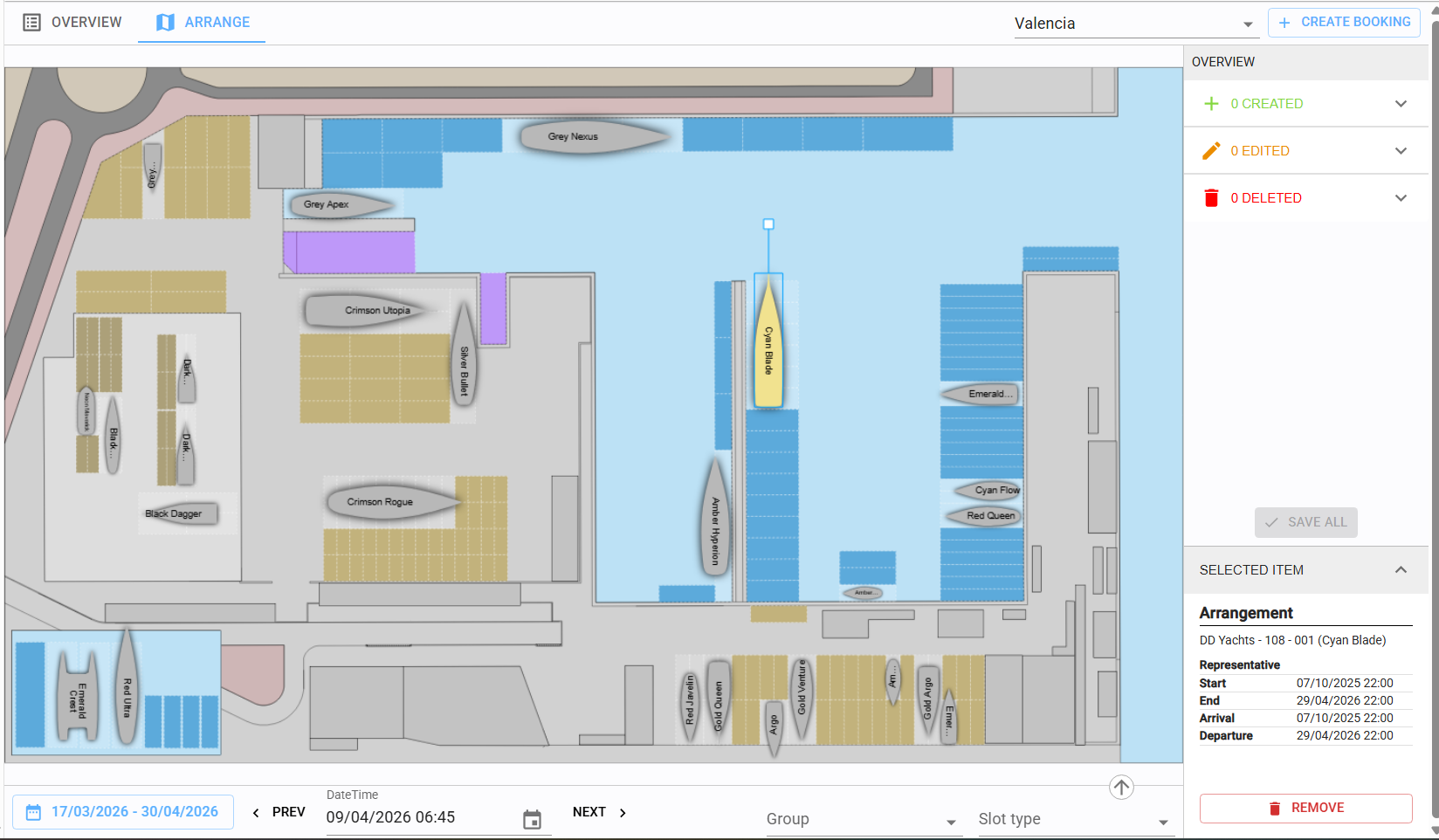
Once a vessel is selected, you can move it to any other slot on the map using drag-and-drop. By default, moving a vessel in this view updates its location for the entire duration of the booking.
If you need to relocate a boat for only a specific portion of its stay, you must use the Split functionality within the Timeline (refer to section 8.2.4).
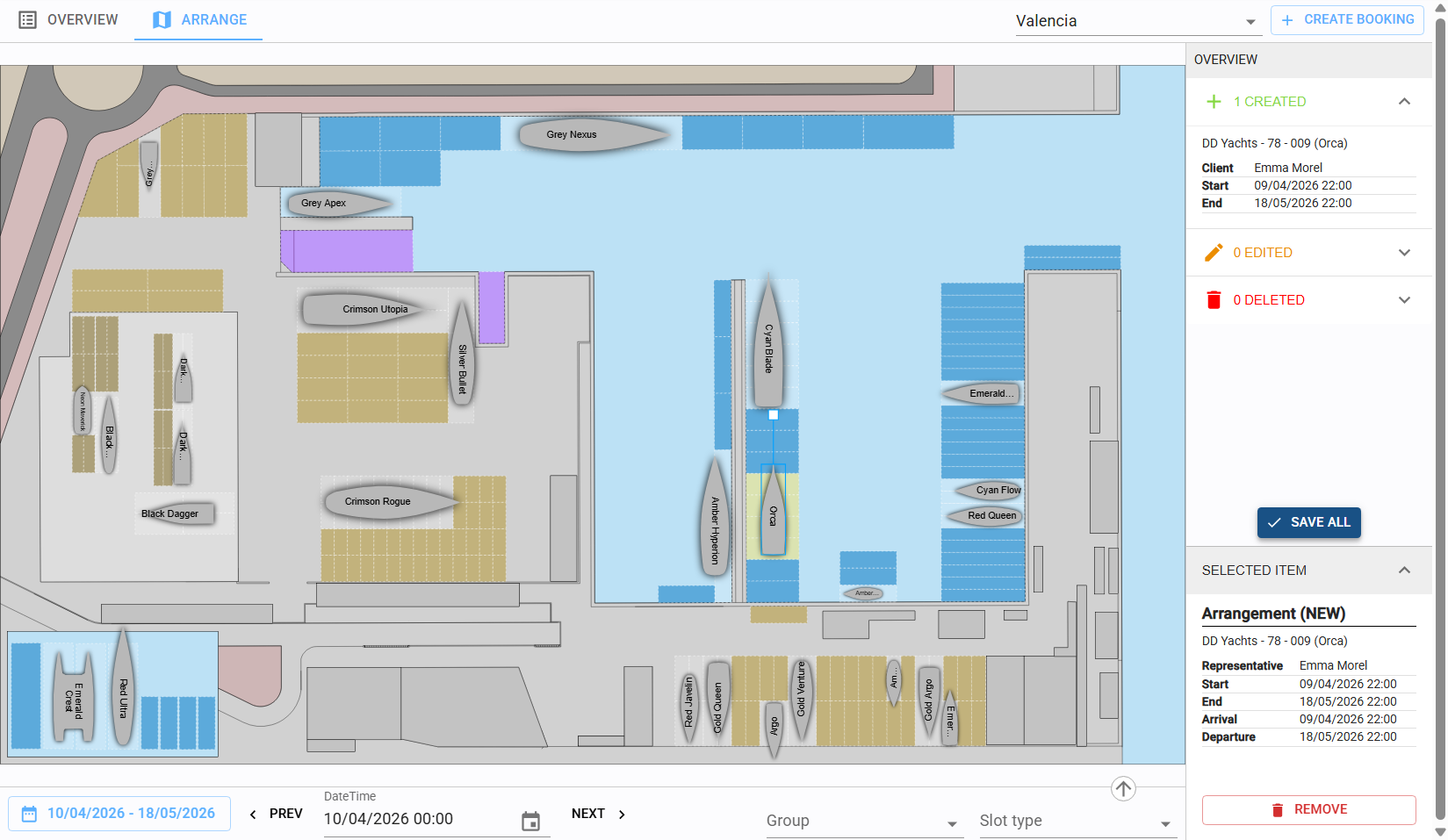
Alternatively, you can access this view via the "Arrange on Map" action (triggered from a selection of one or more arrangements).
In this mode, the vessel to be assigned will appear highlighted in a white box in the top-left corner of the interface
After performing any movements or assignments, click "Save All" to commit the changes to the system.
8.2.3 Rotate boat
Right-click on a vessel icon to rotate it by 90-degree increments for accurate map positioning.
8.2.4 Timeline
Click the arrow in the bottom-right corner of the map to open the full Timeline.
This view is essential for resolving conflicts and managing complex movements.
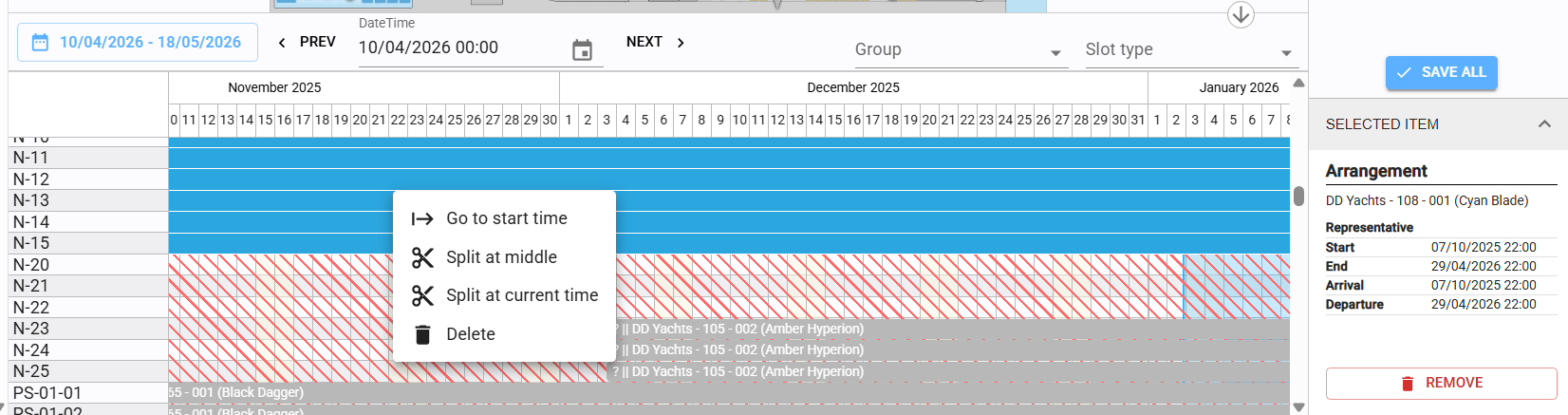
Actions on an Arrangement:
- GO TO START TIME
Moves the red timeline cursor to the beginning of the booking.
- SPLIT AT MIDDLE
Divides the arrangement into two equal segments.
- SPLIT AT CURRENT TIME
Divides the arrangement at the exact position of the red cursor.
-DELETE
Removes the arrangement
Split Functionality: This is key for managing movements.
For example, to move a boat from one slot to another halfway through its stay, use Split at Current Time at the moment of transport, then drag the second segment to the new slot.
8.3 Events
This page summarizes all Marina events within a selected timeframe.

Required Input: Start/End dates for the report and a specific timestamp for the map "snapshot."
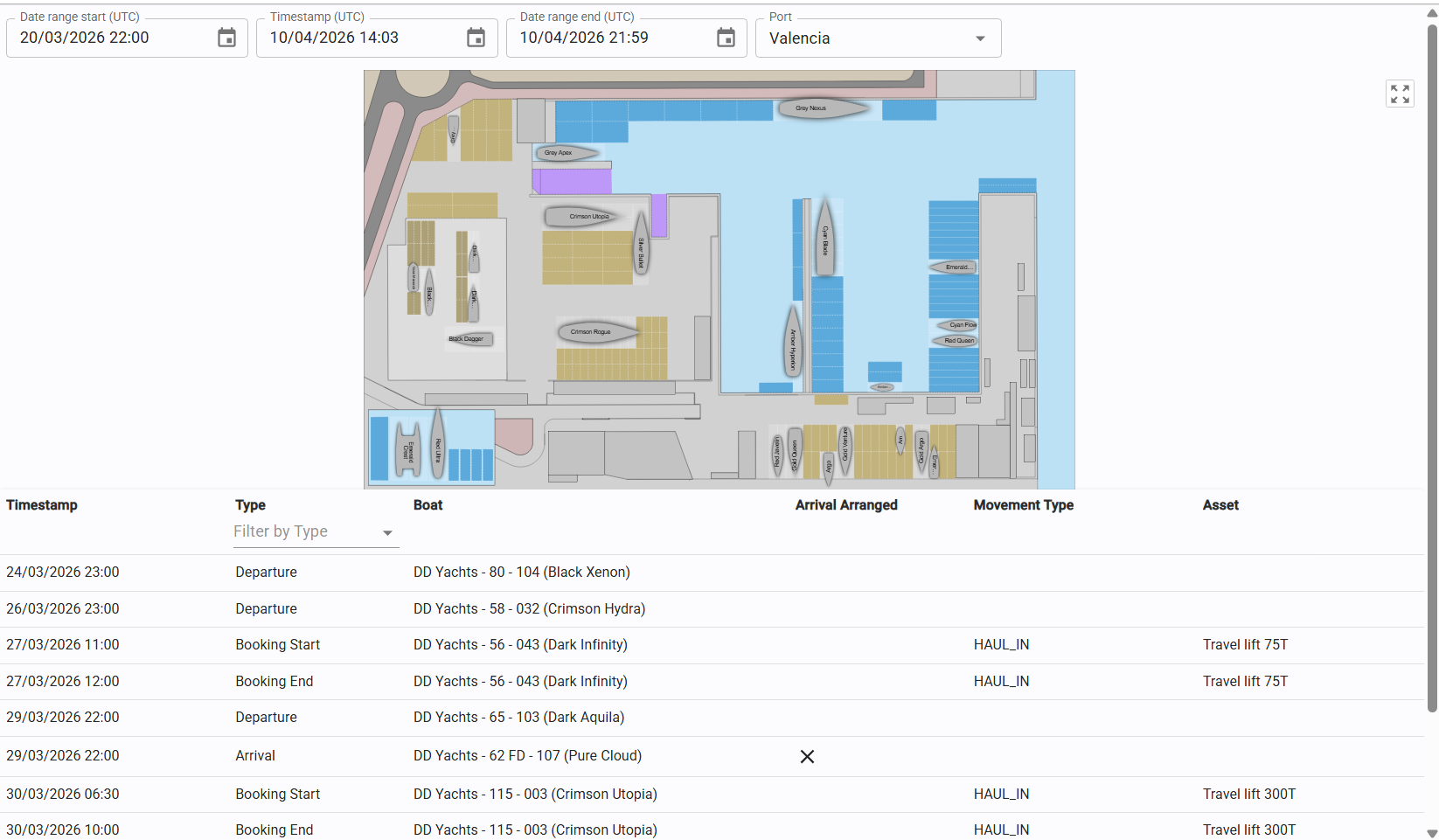
Data Provided: Arrivals, departures, and internal movements, including whether specific assets (see section 9) were utilized.
PLANNING AND WORK
