Asset booking
Overview
This section is dedicated to managing equipment and assets, including their rental and scheduling. Users can check real-time availability and book assets for specific tasks.
9.1 Booking
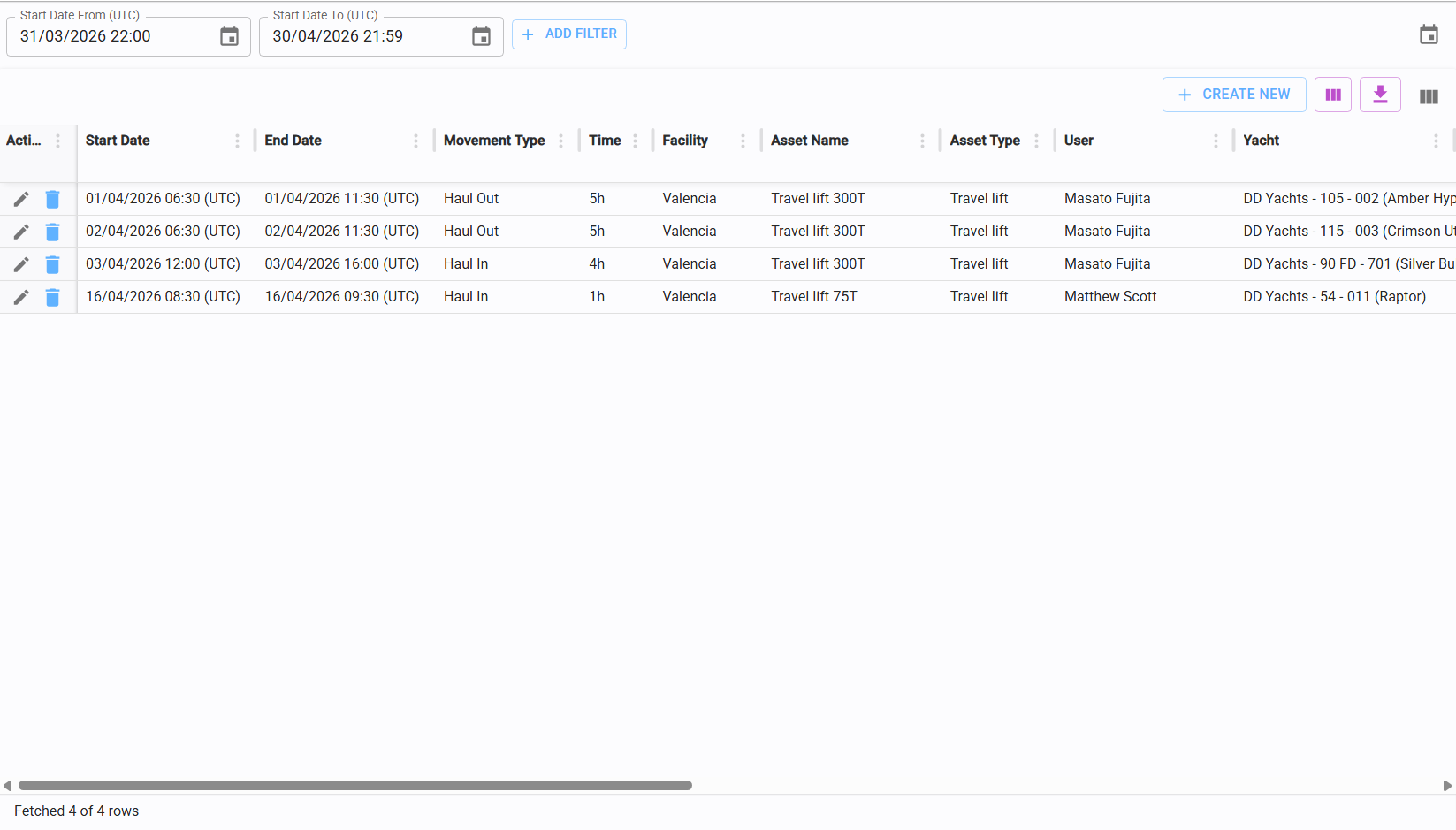
This page provides an overview of all asset reservations. You can choose between a standard Table View or a Calendar View.
Table View is the default display mode.
9.1.2 Calendar view
Click the Calendar icon in the top-right corner to switch to the calendar visualization.
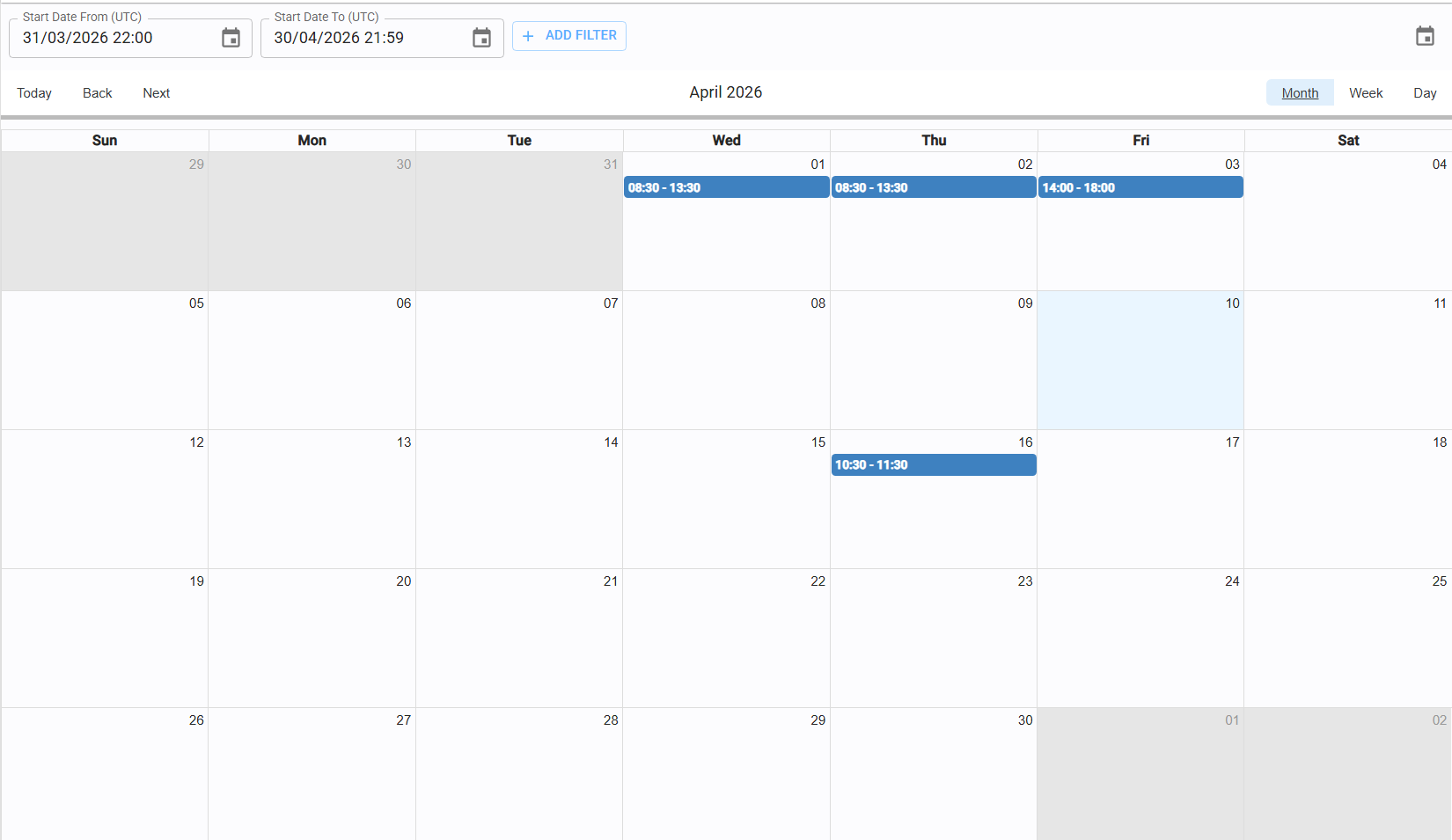
The calendar supports three views for better scheduling precision: Month, Week, Day.

9.1.3 Create/edit booking
To create a new booking, click the "Create New" button located in the top-right corner above the table.
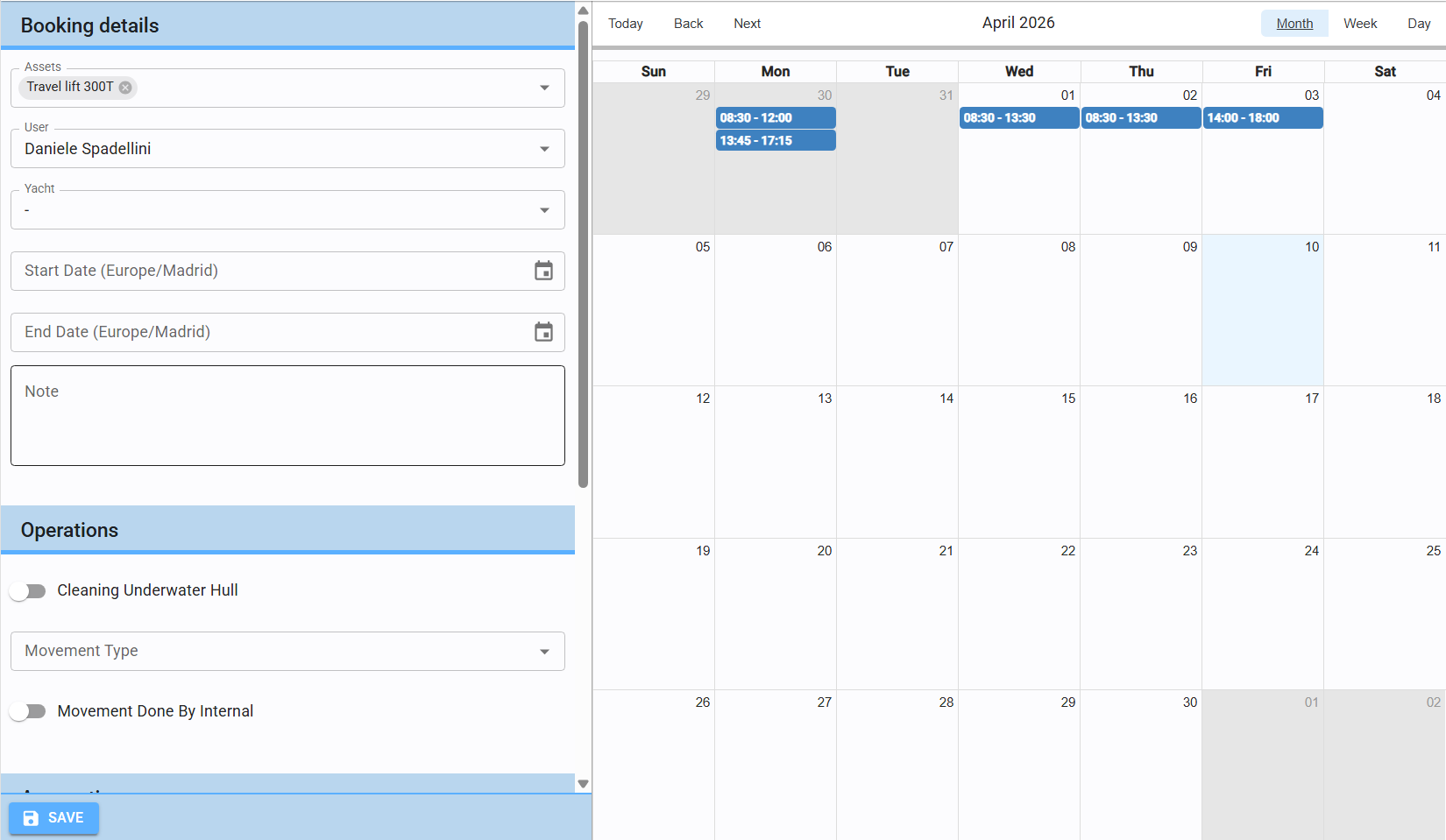
Availability Check: Once you select one or more assets (multiple selection is supported only in create), the calendar on the right will highlight existing bookings, showing when those assets are already booked.
You must specify the User (the person responsible for the booking), as well as the Start and End Dates/Times.
Yacht, Notes, and fields related to Operations and Accounting are not required to save the booking.
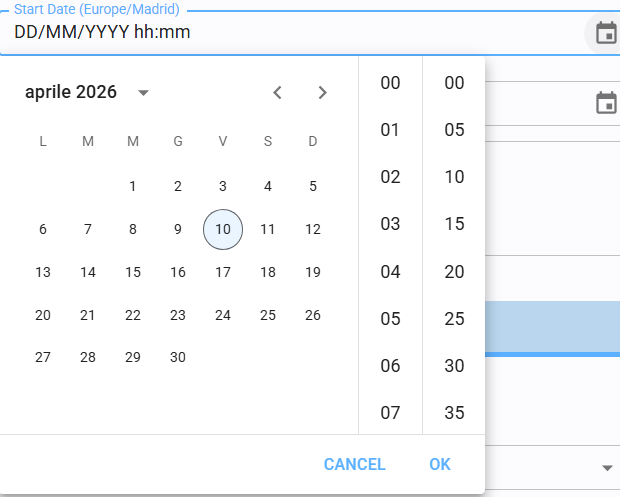
The booking timeframe can be defined in three ways:
-
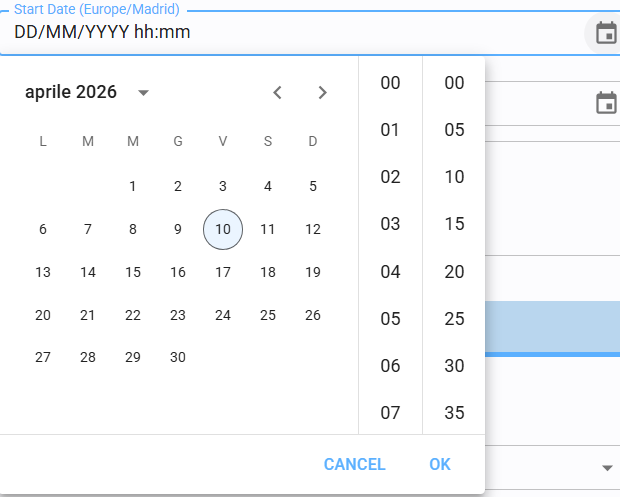
Using the Calendar icons to pick dates.
-
Entering the date and time manually via the keyboard.
-
Clicking, holding, and dragging the mouse directly over the calendar interface.
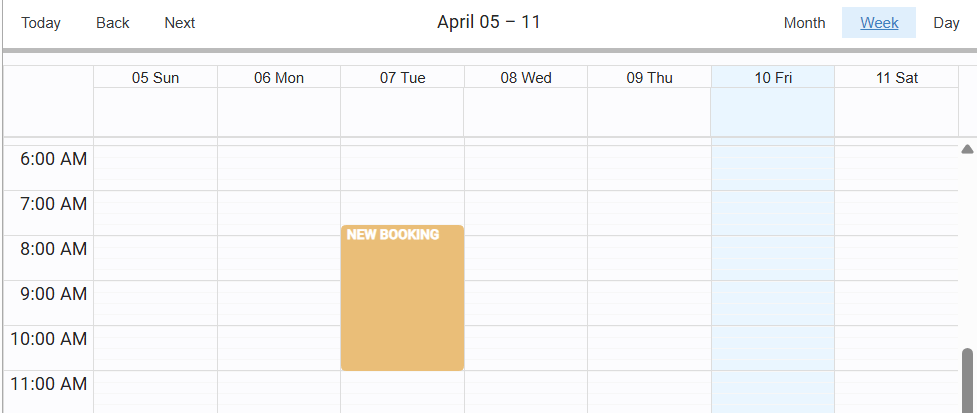
Once created, the booking block in the calendar can be easily moved (to change dates) or resized (to adjust duration).