Profile and account
Overview
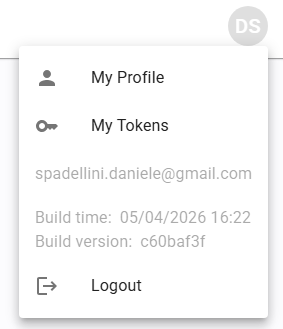
The user icon is consistently available in the top-right corner of the interface.
Clicking this icon opens a pop-up menu that provides access to your profile settings.
This menu also displays your account email, the current application version, and the Logout action.
My profile
The profile section displays your personal and account details:
- Name
- Password
- Company Roles
- System Roles
Change/reset password
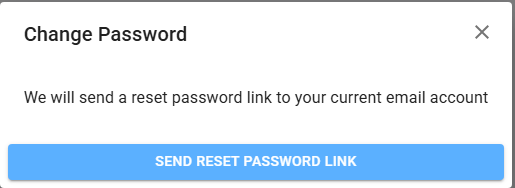
- When logged in: clicking the Edit icon next to the password field in the "My Profile" section will trigger a confirmation prompt to "Send Reset Password link."
- When logged out: clicking the Forgot password link in login page, fill the email field and click the "Send Password Reset link."
This initiates the password reset process via email.
Change email
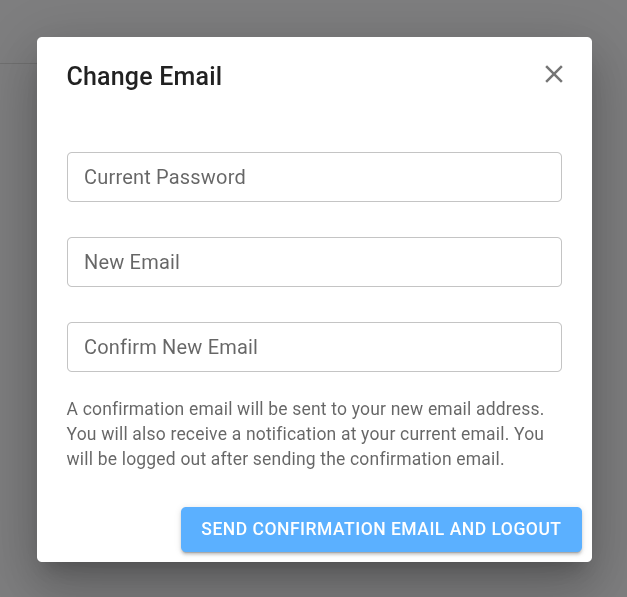
Clicking the Edit icon next to the email address in the "My Profile" section will open a dialog to proceed with the email change.
Just input the current password, the new email and the confirmation of the new email to complete the email change.
Beware that upon confirmation you will be logged out.