Surveys
Overview
This section of the application is used to manage, assign, and execute surveys (checklists).
Inspections are carried out directly within the app, and professional reports are generated automatically.
Assignments
This page is used to create and modify checklists and assign them to managers and technicians.
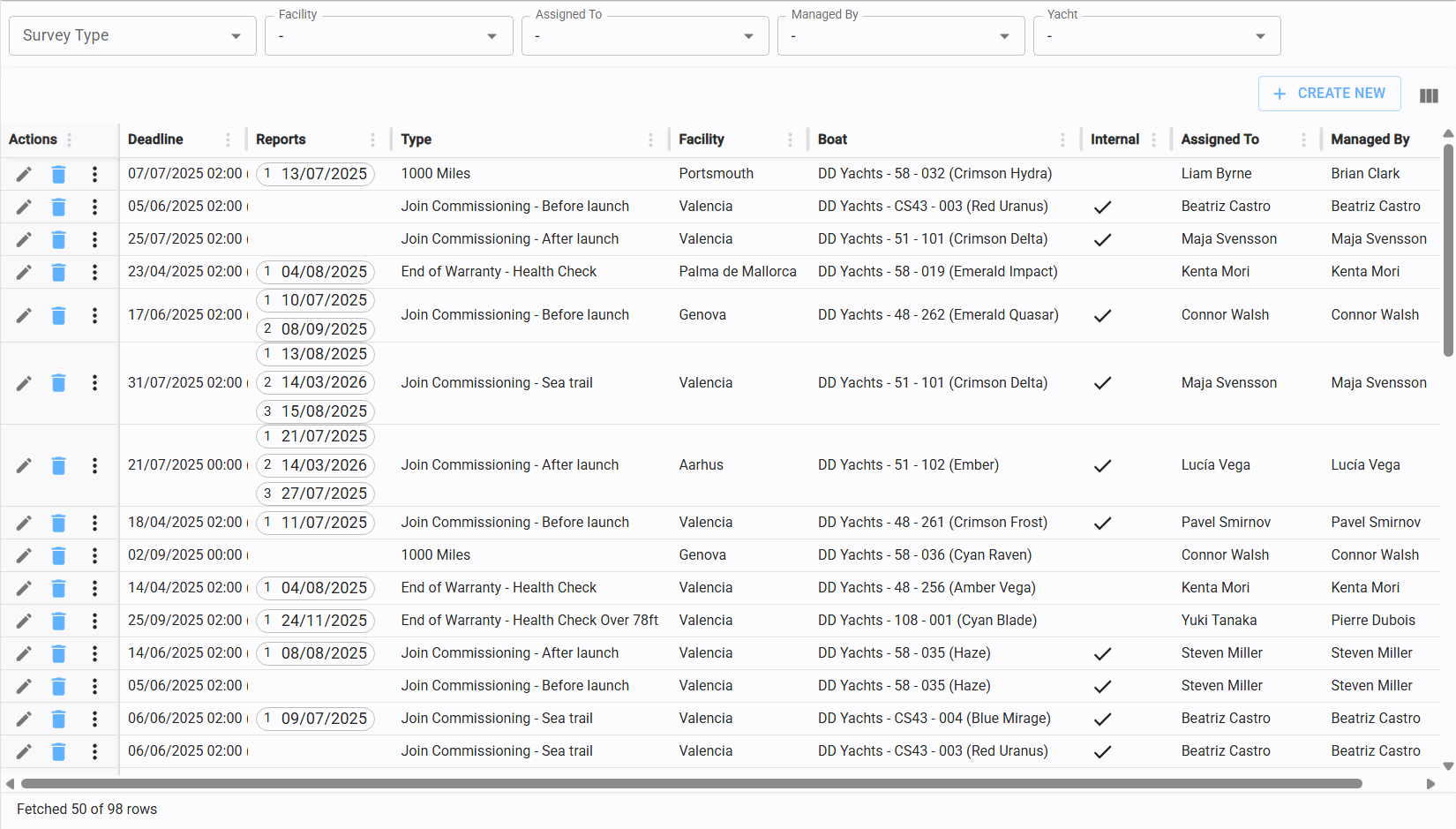
Create/edit assignment
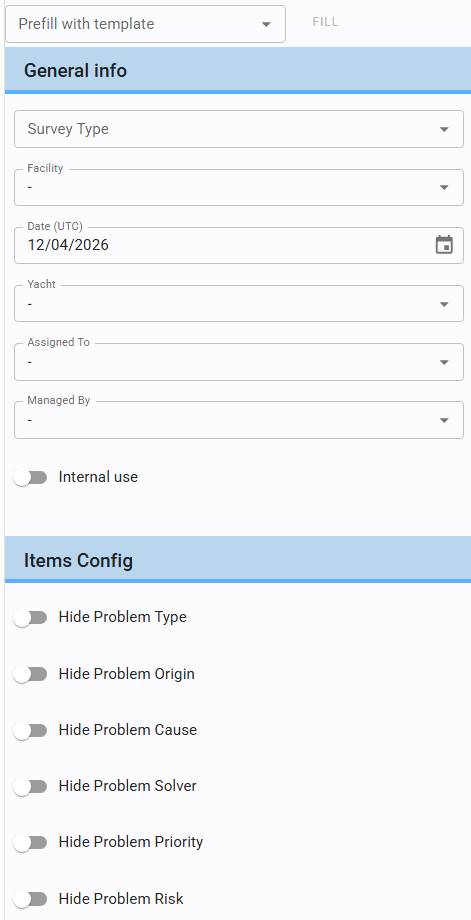
Click "Create New" in the top-right corner of the Assignments table to access the survey editor.
At the top, you will find the "Prefill with template" option (see Prefill with template).
GENERAL INFO
Select the Yacht for the inspection and the Survey Type.
Specify the Facility where the survey will take place and the Deadline.
Select the responsible supervisor (Managed By) and the designated technician (Assigned To).
Use the toggle to define if the survey is for Internal Use or to be Shared with the Client.
ITEMS CONFIG
You configure the required parameters for the survey items, such as: Problem type, Origin, Cause, Solver, Priority, and Risk.
Note: This configuration is automatically set when using the "Prefill with Template" feature (see Prefill with template).
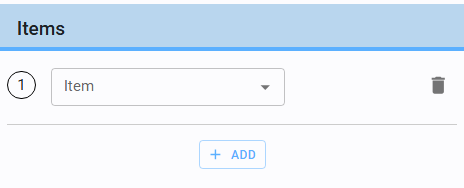
ITEMS
This is where you build the list of points to be checked. You can add items one by one and define their order (refer to Lists)
Prefill with template

The "Prefill with template" dropdown contains all pre-configured checklist models (see Types (template)).
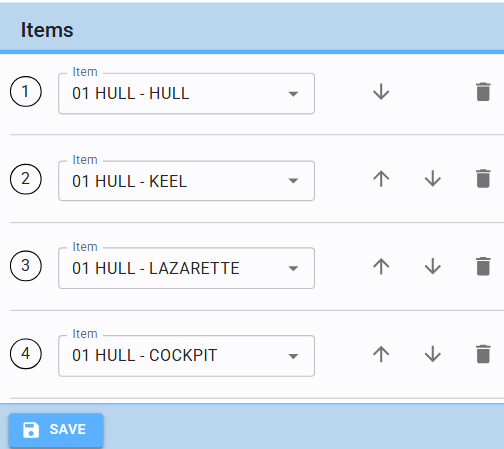
Select the desired template.
Click the "FILL" button.
The items will load automatically. You can still delete, reorder, or add further items even after using the prefill function.
Start survey
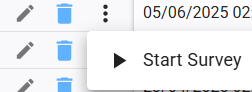
By clicking the three vertical dots in the Action column, you can select "Start Survey".
This action is used when the assignment is ready to be executed.
Once a report is initiated for that assignment, this function becomes disabled.
Reports
This page displays all completed or ongoing reports.
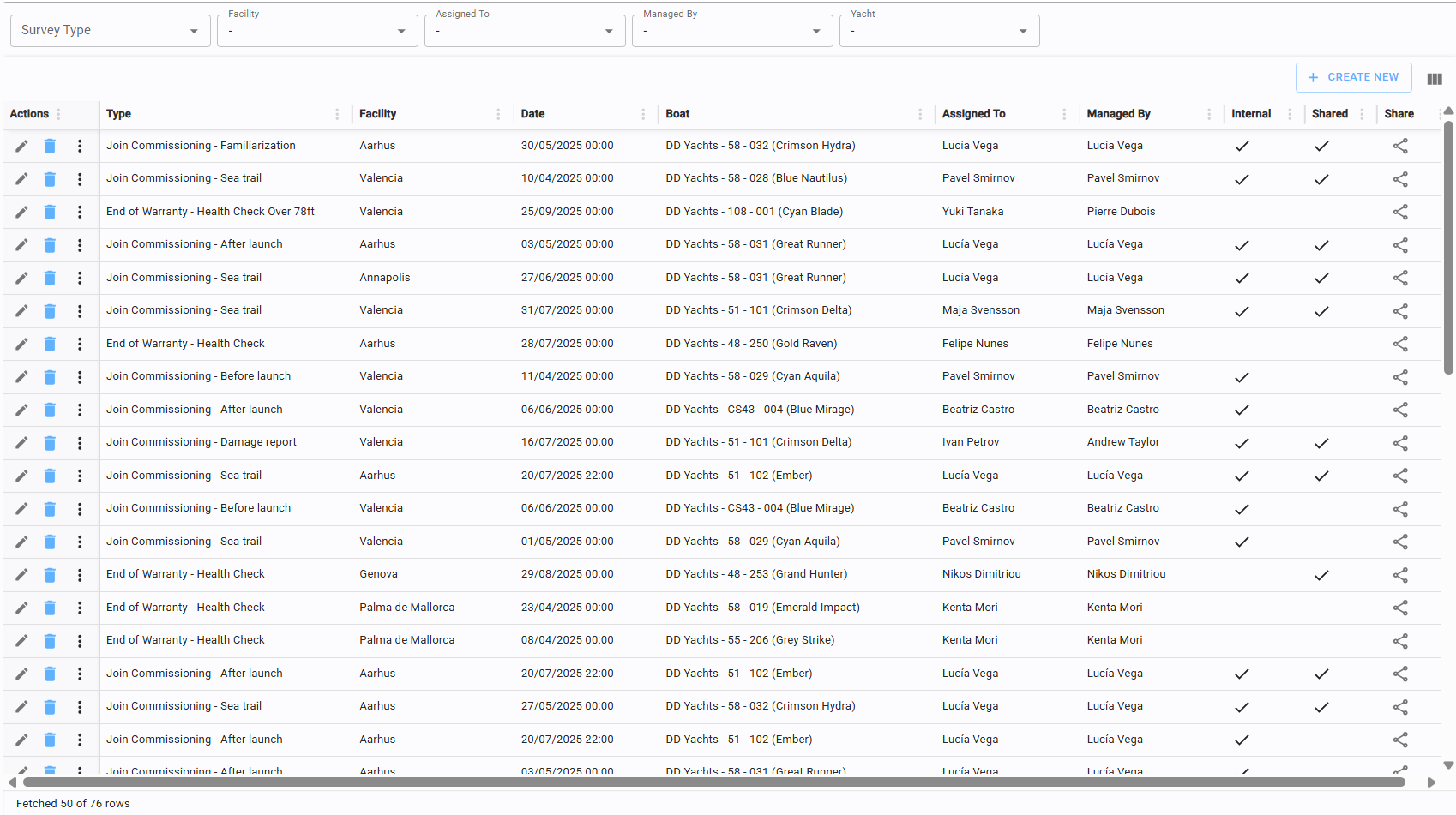
The table allows for four actions: Edit, Delete, Make Revision (see Make revision), and Share Link (see Share link).
Create/edit report
When executing a survey, the screen is split into two parts: the Editor on the left and the Report Preview on the right.
EDITOR REPORT
(Last boat survey, Main Image e Items) (PREVIEW PDF)
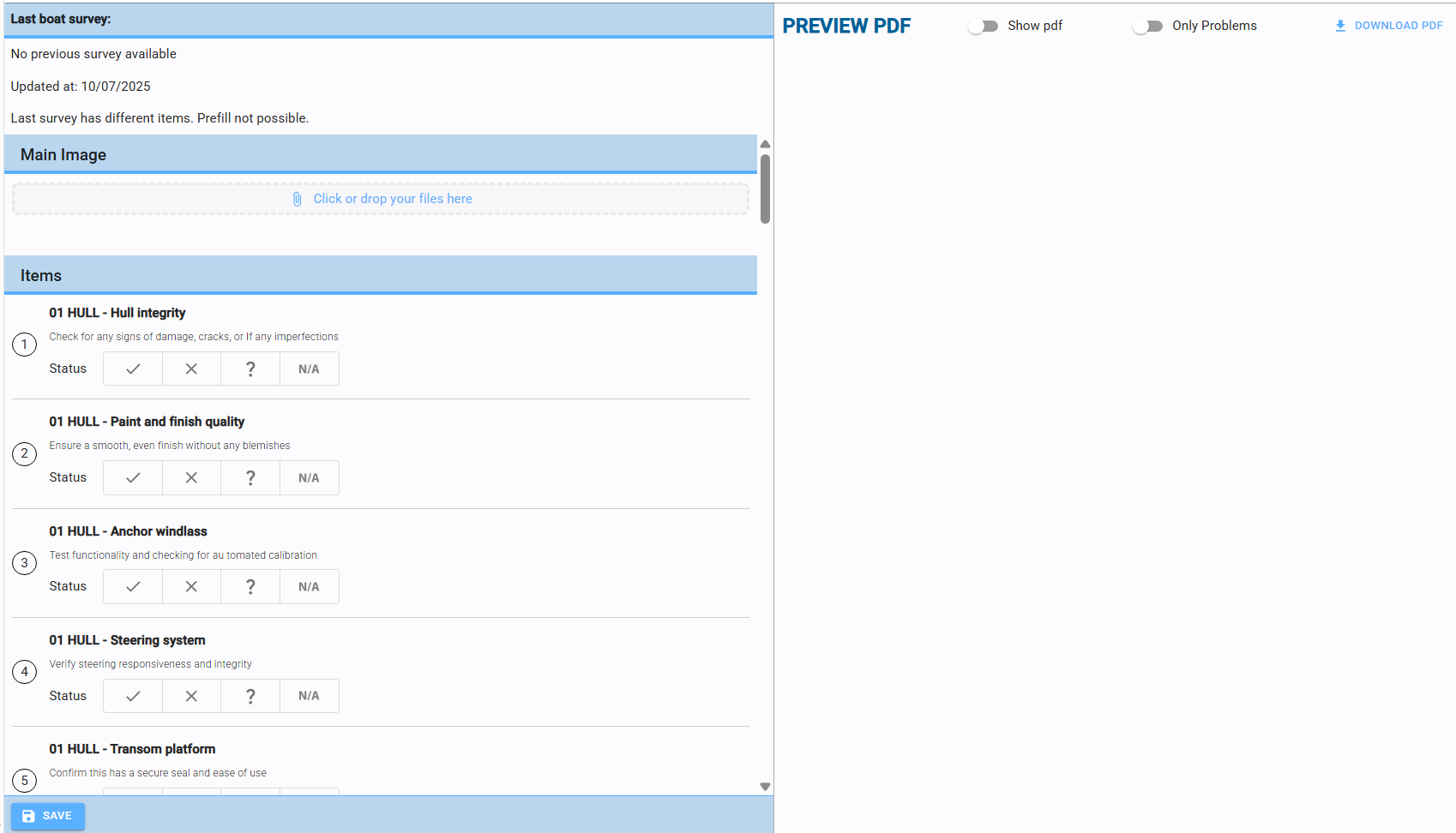
LAST BOAT SURVEY
If a previous survey exists for the same yacht with identical items, you can load the data to recover previous information.
MAIN IMAGE
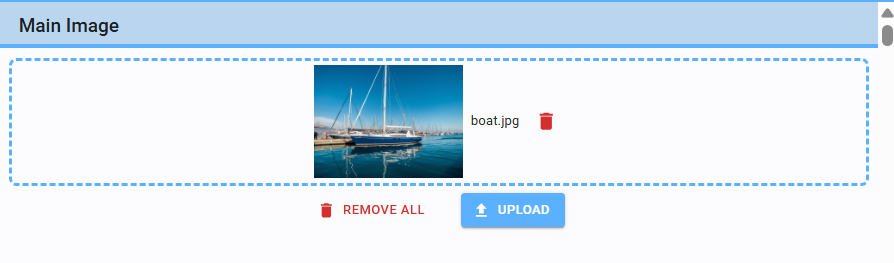
The photo uploaded here will serve as the cover photo for the final report.
ITEMS
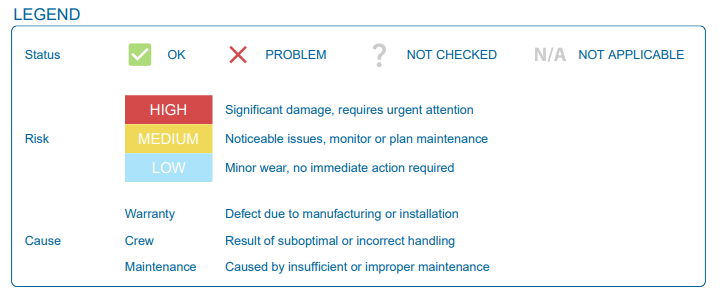
Each item is checked, and its status is recorded.
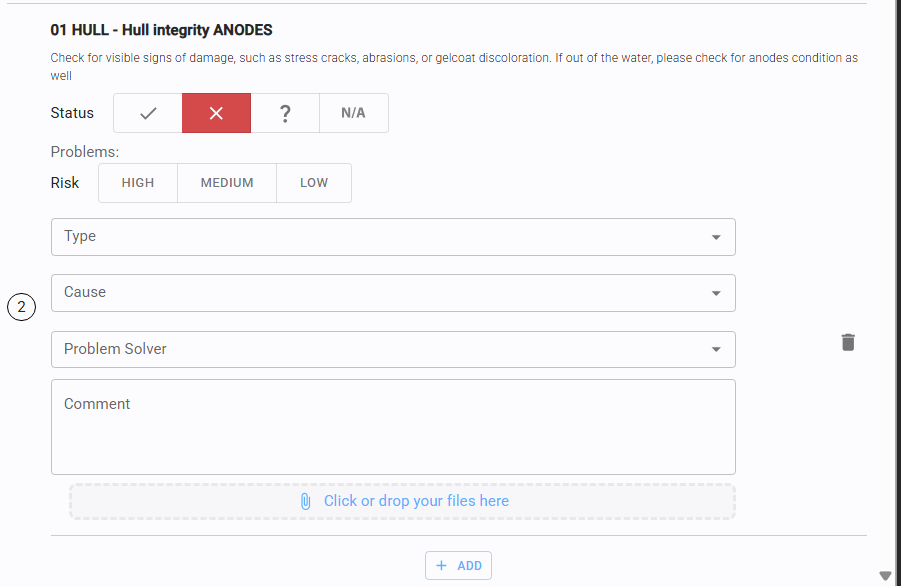
If a problem is identified, the system will show the specific fields (Priority, Risk, etc.) based on the initial configuration.
You can add comments and attach files/photos (see Upload files).
You can also add multiple problems to the same item using the "Add" button.
PREVIEW PDF
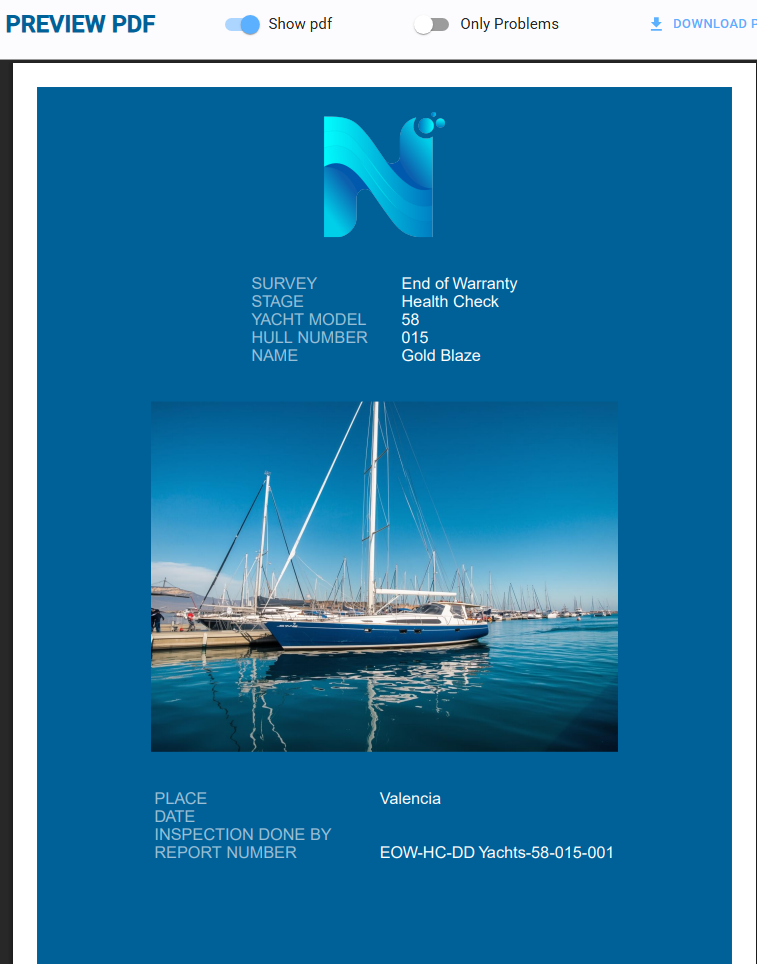
Use the toggle in the top bar to show or hide the PDF preview.
This switch determines the report's structure. When active, the report will only include items marked with issues. When inactive, the report will list all items in the checklist.
The preview updates in real-time as you edit.
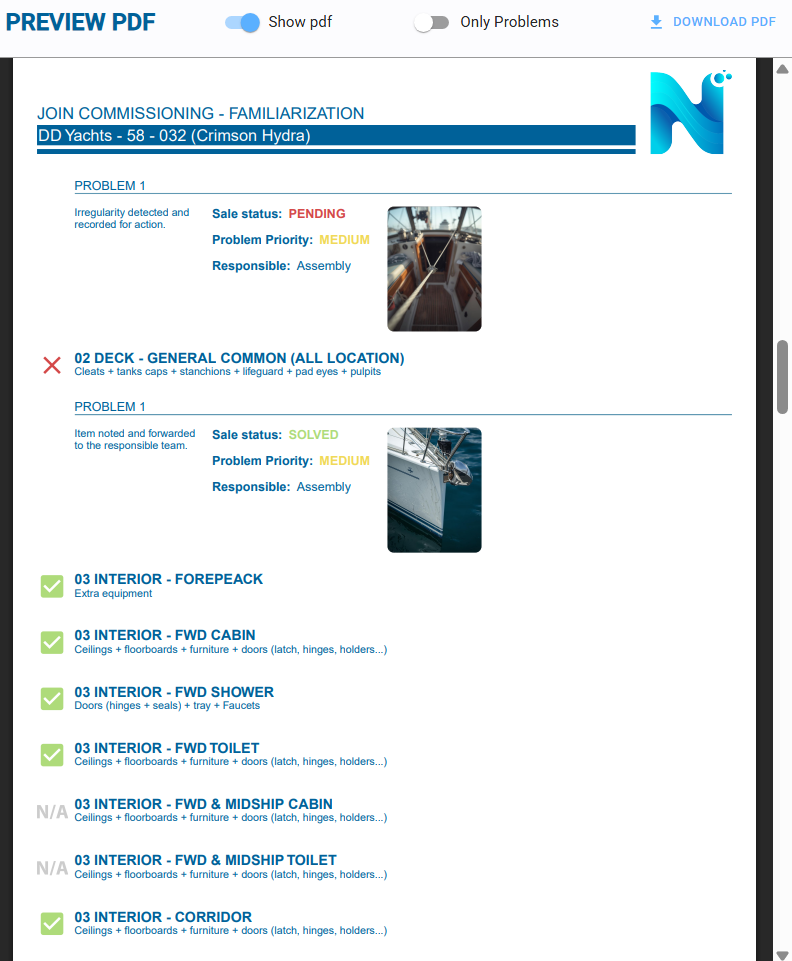
You can download the PDF or share the report link at any time (see Share link)
To pause your work, simply click Save. You can resume the inspection at any time by selecting the Edit icon in the Action column of the Surveys table. Always ensure you save periodically during the process to prevent the loss of images, photos, or entered data.
Make revision
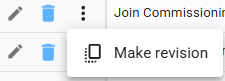
From the Reports table, selecting "Make Revision" from the action menu opens the editor with all previous data pre-loaded, ready for updates.
Share link
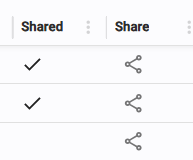
Clicking the Share icon generates a unique web link for the report. Once generated, a status indicator will appear in the "Shared" column.
Mobile view
When accessing from a mobile device, the PDF Preview is hidden. The interface is optimized specifically for field technicians to check items and upload photos quickly.
Types (template)
This page is used to manage the survey templates (Types).
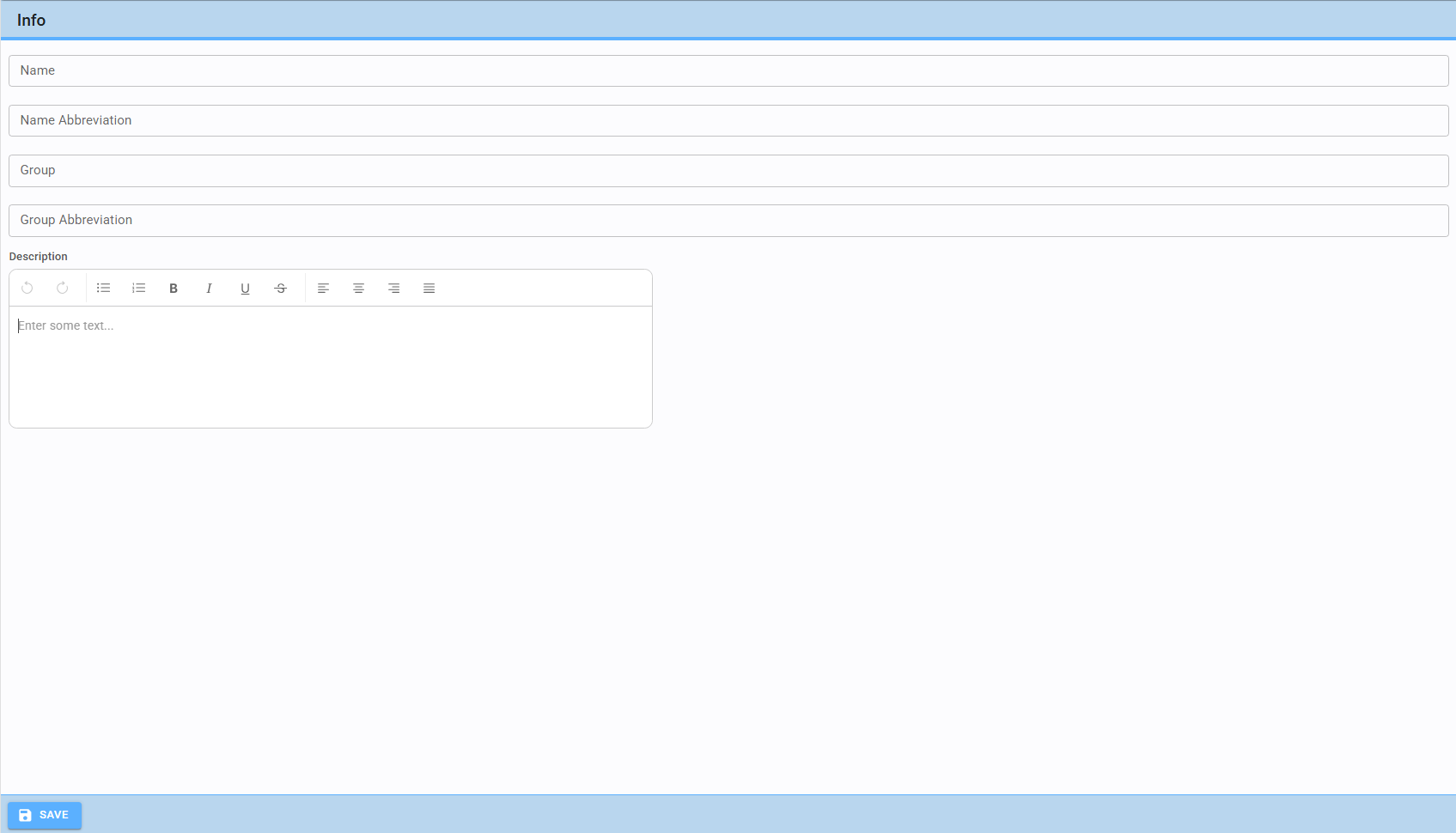
Create/edit survey type
You can create new templates by defining the Name, Group, and their respective Abbreviations (used for automatic report numbering).
Editor description
This feature allows you to create a standard descriptive text for the survey, which will be automatically included in the generated template.